

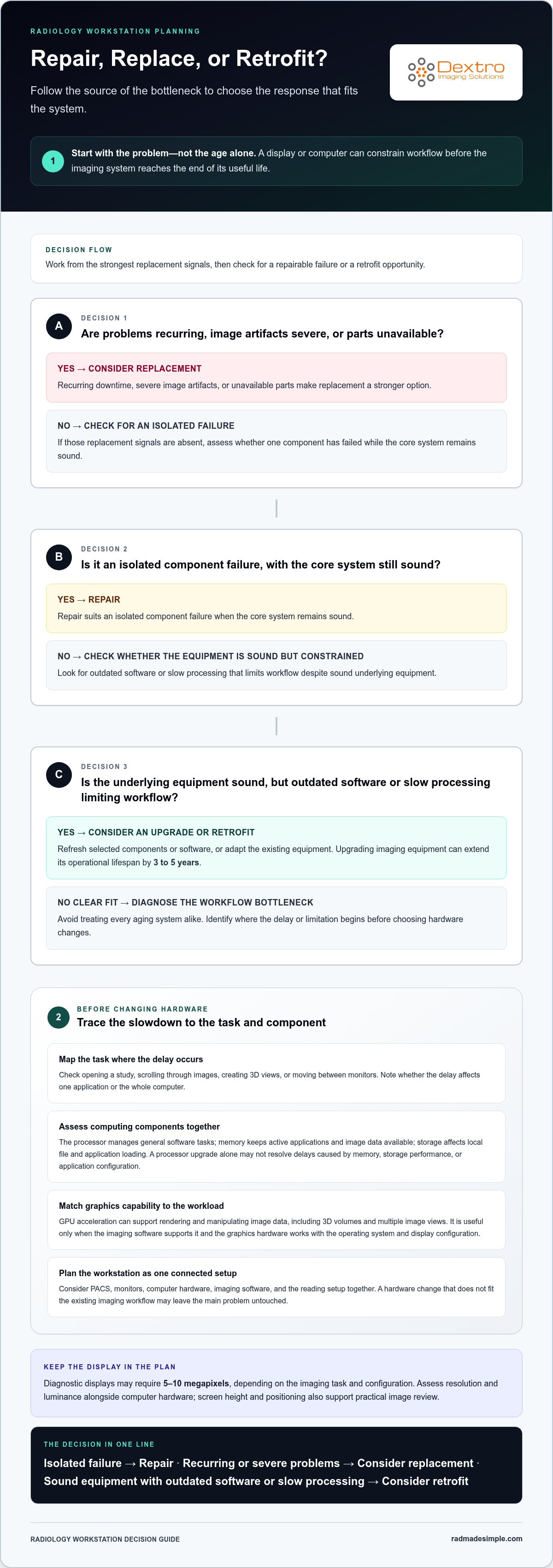
The workstation that slows a reading room isn’t always ready for replacement. Repair suits an isolated component failure when the core system remains sound; replacement becomes a stronger option when downtime recurs, image artifacts are severe, or parts are unavailable. Consider retrofitting when the underlying equipment is sound but outdated software or slow processing limits workflow, since upgrades can extend imaging equipment’s operational lifespan by 3 to 5 years. That’s the central decision in upgrading radiology workstations: match the solution to the source of the bottleneck.
It’s reasonable to focus first on the computer or display, but workstation performance also depends on how the PACS, monitors, and reading setup work together. A hardware change that doesn’t fit the existing imaging workflow may leave the main problem untouched.
This article explains how equipment lifespan, computing hardware, upgrade programs, PACS integration, and monitor positioning inform the choice to repair, replace, or retrofit. You’ll learn which factors matter most, how compatibility shapes the decision, and why screen placement belongs in the upgrade plan.
Key Takeaways
- Use equipment age as context, not the only trigger for a decision. Match the response to system condition, support, and the impact of downtime.
- Separate computing bottlenecks from display or software constraints to identify what an upgrade needs to address.
- Choose repair for isolated failures, consider retrofit when core components remain sound, and weigh replacement when problems are recurring or parts are unavailable.
- Plan PACS compatibility and monitor positioning alongside hardware changes so the updated workstation supports the reading workflow.
Typical lifespans of diagnostic imaging equipment
Equipment age helps frame a repair-or-replace decision, but workstation needs also depend on the modality and reading task. A display or computer may constrain workflow before the imaging system reaches the end of its useful life.
CT scanners typically have an operational lifespan of 7 to 10 years; MRI systems average 10 to 12 years of reliable performance. Mammography systems last approximately 7 to 10 years. Workstation requirements differ by image type: CT and MRI reading involves reviewing image stacks and 3D views, while mammography prioritizes fine detail and comparison of breast images. 3D imaging also places emphasis on smooth volume rendering and responsive interaction.
Display Technology and Luminance
Diagnostic display technology combines screen resolution and luminance, the light output that makes image details visible. Luminance matters because radiologists assess subtle grayscale differences across an image, and inconsistent brightness can make comparisons harder.
Diagnostic displays may require 5-10 megapixels, depending on the imaging task and configuration. A larger resolution can show more image information in a viewing window, while appropriate screen height and positioning support practical review. Assess display performance alongside the computer hardware rather than treating monitor age as the only measure of workstation readiness.
For lifecycle planning, CT scanners typically last 7 to 10 years, fixed and mobile X-ray systems 8 to 12 years, and ultrasound systems 5 to 7 years. These typical ranges describe imaging equipment, not a guaranteed replacement date for its workstation. A facility can evaluate the computer, display, and modality separately, then identify which component limits image access or review.
Diagnostic and Clinical Review Workstations
A diagnostic workstation is configured for primary image interpretation, while a clinical review workstation supports image viewing for care discussions and general reference. The distinction matters because diagnostic reading places greater emphasis on display resolution, luminance, and consistent image presentation.
For CT, MRI, mammography, or 3D studies, match display capability to the diagnostic task rather than assuming a general clinical screen is equivalent. A clinical review station can support access to images, but its purpose differs from a workstation used to make diagnostic interpretations. This distinction helps facilities decide which hardware needs a diagnostic-grade upgrade and which station serves review workflows.
Computing hardware and GPU acceleration
A radiology computer must handle image loading, manipulation, and display without interrupting the clinical workflow. Slow responses when opening a CT series or changing a viewing window can point to a computing bottleneck, not necessarily an aging monitor. Assess the computer alongside the imaging application and connected monitors to identify where delays begin.
The processor manages general software tasks, while memory keeps active applications and image data available. Storage affects how quickly local files and applications load. If a workstation slows when several studies or clinical applications are open, assess these components together. A processor upgrade alone may not resolve delays caused by limited memory, storage performance, or application configuration.
A graphics processing unit, or GPU, handles parallel visual tasks such as rendering and manipulating image data. This can matter for 3D imaging, where clinicians interact with reconstructed volumes, and for workflows that display multiple image views. GPU acceleration is useful only when the imaging software supports it and the graphics hardware works with the operating system and display configuration.
Before changing hardware, map the actual task: opening a study, scrolling through images, creating 3D views, or moving between monitors. Note where the delay occurs and whether it affects one application or the whole computer. Then align the proposed components with the software’s requirements, image workload, and number of displays. This keeps an upgrade focused on the constraint rather than adding capacity that the clinical workflow won’t use.
Display capability also belongs in the same review. High-performance diagnostic monitors can be considered when the workstation plan includes specialized displays; pair display selection with computer and graphics compatibility. For a coordinated assessment of imaging hardware and workflow through Dextro Imaging Solutions, explore diagnostic workstation planning.
Upgrade, trade-up, and retrofit programs
An upgrade refreshes selected components or software; a retrofit adapts existing equipment, while a trade-up replaces older equipment through a replacement program. The right path depends on what limits reading: sound core hardware with outdated software may suit an upgrade, while recurring failures can point to replacement. These options can extend equipment life or address a bottleneck without treating every aging system alike.
Upgrading imaging equipment can extend its operational lifespan by 3 to 5 years. This approach can fit when structural components remain sound but outdated software, slow processing, or older digital detectors restrict patient throughput. For example, if image acquisition remains reliable but processing delays disrupt reading, a targeted hardware or software change may address the constraint more directly than replacing the entire system.
Compare the options against the problem each one solves:
- Repair: Address an isolated component failure when the core system remains mechanically sound and supported by OEM software.
- Retrofit or upgrade: Refresh software, processing, or detectors when the underlying structure remains useful.
- Trade-up or replacement: Consider a new system when downtime recurs, image artifacts are severe, or replacement parts are unavailable.
Reading ergonomics also belong in a workstation upgrade plan. Radiology reading sessions typically last 8-12 hours, so adjustable desks can support changes between seated and standing positions. Musculoskeletal issues affect 40-60% of imaging professionals, and anti-fatigue mats can help reduce fatigue and lower-extremity pain during prolonged standing. These adjustments address physical strain, while software and hardware changes target technical workflow constraints.
Separate the two needs before selecting a program. If a workstation’s software or processing slows image review, focus on those components; if extended reading creates discomfort, assess desk height and standing options. Height-adjustable workstations may support productivity, but ergonomics should complement, not replace, the technical changes needed for a reliable reading workflow.
PACS integration and monitor positioning
PACS integration and screen placement shape how efficiently a department can review images. Plan both around the workstation’s function and study volume, rather than treating monitors as a separate hardware choice.
Typical diagnostic workflows may use 2 to 8 monitors, while some radiology control environments use 12-monitor wall-mounted configurations. More screens can provide room for images, reports, and other applications, but the arrangement should support the reading task without awkward head or eye movements. Position monitor tops at or slightly below eye level, then adjust height and angle for the reader’s posture.
To migrate imaging software, PACS, and user settings, map the existing applications, display layouts, and workflow preferences, then configure them on the replacement workstation. Test access, image display, and familiar tasks in the target PACS before routine clinical use.
Cybersecurity and IT compatibility deserve the same planning as image display. Teleradiology workstation security includes restricted user privileges and endpoint protection, alongside application controls such as secure authentication and threat protection. For HIPAA-related risk management, coordinate workstation access, data handling, and security controls with existing organizational policies. Also assess compatibility across the operating system, PACS, and peripherals.
Integration may take several weeks because planning must account for PACS configuration, user settings, monitor layouts, and department workflow. For example, a high-volume reading room may need a different screen arrangement and application layout than a station used mainly for image review. Test the complete setup with representative studies before relying on it for daily work.
Build PACS compatibility and ergonomic positioning into the upgrade plan from the start. Plan a radiology workstation upgrade around your department’s imaging workflow and display setup.
Dextro Imaging Solutions: Radcom Compact
Dextro Imaging Solutions offers Radcom Compact for imaging facilities evaluating their workstation setup. It can be considered alongside Dextro Reading Stations, Jusha diagnostic monitors, and PACS Harmony when planning a refresh around reading needs, display requirements, and PACS workflow.
The right combination depends on the challenge: a need for a reading station, diagnostic display requirements, or PACS integration. Reviewing these needs together keeps equipment decisions connected to how your team reads and manages imaging, rather than treating each component in isolation.
If you’re evaluating workstation options, contact Dextro Imaging Solutions or visit radmadesimple.com to discuss your imaging environment.
Make the Next Workstation Decision Deliberate
Use the upgrade decision to set a clear direction for your imaging environment, not simply to replace aging equipment. Identify the workflow constraint that matters most, then align the next step with how your team reads, displays, and accesses studies. This keeps upgrading radiology workstations focused on practical department needs rather than technology for its own sake.
Dextro Imaging Solutions offers Radcom Compact, Dextro Reading Stations, and Jusha diagnostic monitors. These options can support imaging facilities as they plan workstation and display decisions. The right fit depends on the role each component needs to play in your environment.
Bring your priorities into the conversation, including current reading workflows, display needs, and PACS integration considerations. Contact Dextro Imaging Solutions to discuss the workstation options that align with your imaging environment. A deliberate plan can help your team move forward with clarity and confidence.
Frequently Asked Questions
Should You Repair, Replace or Upgrade Your Radiology Equipment?
Choose repair for a contained fault, an upgrade when a targeted change can address a limitation, and replacement when the system no longer supports dependable work. For example, a failed workstation component may be repairable, while slow image interaction across daily reading tasks can signal a broader capacity issue. When upgrading radiology workstations, compare how often the fault recurs, its effect on workflow, and system support before deciding.
What hardware specifications are required for radiology workstations?
Specifications should match the modality, viewing task, software, and monitor layout. Diagnostic display and monitor configurations vary with the workflow and viewing needs. A workstation handling 3D studies may need graphics capabilities that its imaging software supports, while a simpler review role may have different demands. Confirm that computer, graphics hardware, and displays function together as one system.
What are the FDA and DICOM requirements for diagnostic radiology displays in the United States?
Evaluate the display’s stated diagnostic use, its manufacturer documentation for U.S. deployment, and DICOM image handling as separate selection criteria. Resolution alone doesn’t establish whether a display suits a diagnostic workflow. Review the display, viewing software, and image presentation together, then align the configuration with the facility’s clinical quality and IT processes. This gives the department a clearer basis for evaluating display suitability.
How do GPU, CPU, RAM, storage, and network requirements affect radiology workstation performance?
Each component affects a different part of image review. The CPU handles general application work, RAM supports active tasks, storage affects local loading, and the GPU supports visual processing when the software uses it. Network performance influences access to remotely stored studies. For example, if local images open quickly but PACS studies load slowly, investigate network access before replacing graphics hardware.
How can hospitals assess and plan a radiology workstation upgrade?
Start by documenting the current workstation’s tasks, applications, displays, and recurring slowdowns. Then identify compatibility needs across PACS, operating systems, peripherals, and user settings. Test a representative configuration with real workflow tasks before expanding it across the department. Planning and PACS integration may take several weeks, so coordinate the rollout with clinical schedules and IT priorities.


