

A full-time teleradiology workstation depends on more than a capable computer. It needs diagnostic displays, suitable computing capacity, reliable internet access, and image viewing, PACS, dictation, and reporting tools that work smoothly together.
Remote reading can offer flexibility, but it also makes interruptions, slow image transfers, and disconnected workflows harder to ignore. A practical starting point is a sustained internet connection of 50-100 Mbps and at least 32 GB of RAM, alongside displays suited to the examinations you read.
This guide explains how to assess display needs, workstation hardware, internet access, and your reading environment. It also covers how integrated PACS and reporting workflows can reduce friction when you read remotely full time, helping you plan a setup around your day-to-day work.
Key Takeaways
- Match DICOM display capabilities to the examinations you read, and consider how the full workstation supports clear, consistent image review.
- Plan internet access around stable image transfer and continuity, including how your setup will handle a connection interruption.
- Look for a connected reading workflow that brings image access, dictation, and reporting together to reduce avoidable handoffs.
- Build privacy and cybersecurity considerations into the home reading environment, then explore workstation options that fit your workflow.
Computer hardware for DICOM viewing
A DICOM reading setup combines diagnostic displays with a capable computer and a consistent viewing environment. Display performance, calibration, and everyday usability all affect how smoothly you can review studies.
Dedicated Workstations and Home Office Setups
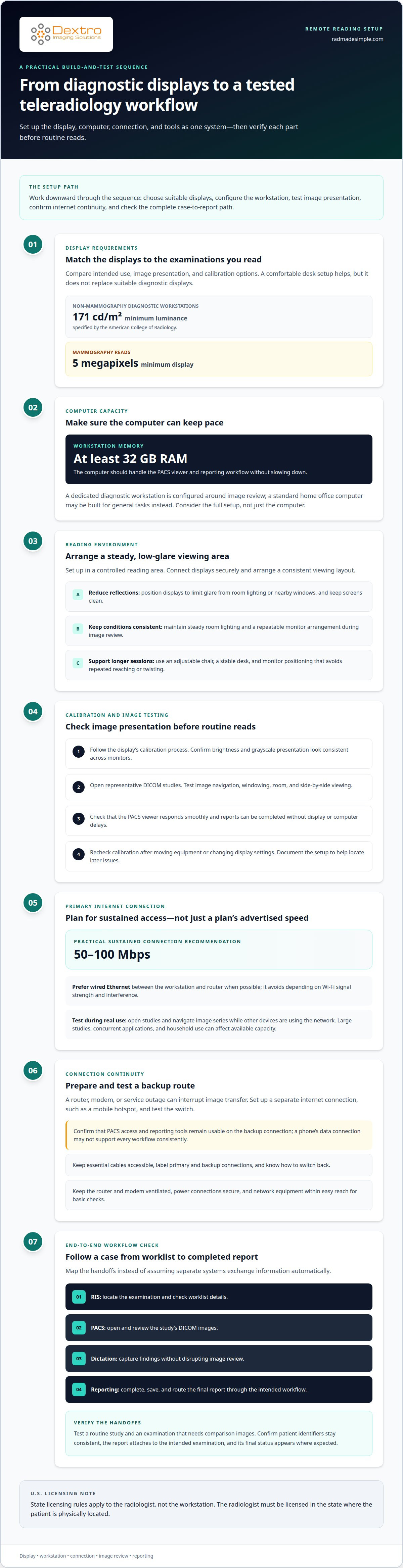
A dedicated teleradiology workstation is configured around diagnostic image review; a standard home office computer may be designed for general tasks instead. Compare the display’s intended use, image presentation, and calibration options, then consider whether the computer handles your PACS viewer and reporting workflow without slowing down. A comfortable desk setup matters, but it cannot replace suitable diagnostic displays.
For non-mammography diagnostic workstations, the American College of Radiology specifies a minimum luminance of 171 cd/m². Mammography reads require a display with a 5-megapixel minimum. In the United States, state licensing rules apply to the radiologist, not the workstation: the radiologist must be licensed in the state where the patient is physically located.
Common problems include display glare, inconsistent brightness, poor positioning, and a computer that struggles while opening studies. For example, reflections from a nearby window can make image review less comfortable, while mismatched displays can make side-by-side comparison harder. A modern teleradiology workstation should have at least 32 GB of RAM. Keep the display clean and place it to reduce reflections from room lighting.
Installation, Calibration, and Testing
Set up the workstation in a controlled reading area, connect each display securely, and arrange a consistent viewing layout. Follow the display’s calibration process, then confirm that brightness and grayscale presentation look consistent across monitors. Keep room lighting steady during image review, since glare can affect how images appear.
Before routine reads, open representative DICOM studies and test image navigation, windowing, zoom, and side-by-side viewing. Check that the PACS viewer responds smoothly and reports can be completed without display or computer delays. Recheck calibration after moving equipment or changing display settings. Documenting the setup helps you pinpoint whether a later issue comes from the monitor, workstation, or software.
Internet bandwidth, wired connections, and backup access
Image access depends on sustained performance, not just the speed shown in an internet plan. The practical recommendation for teleradiology is a sustained connection of 50-100 Mbps. NDI also identifies high-speed internet access as a basic requirement for teleradiologists. Large studies, concurrent applications, and other household internet use can affect how consistently that capacity is available during reads.
When possible, connect the workstation to the router with wired Ethernet. This avoids relying on Wi-Fi signal strength, which can be affected by interference. Placing the router near the reading area may help, but a direct cable makes the connection less dependent on room layout. During testing, open studies and navigate image series while other devices are using the network. Watch for slow loading or interrupted navigation.
Backup access matters because a router, modem, or service outage can interrupt image transfer. Set up a separate internet connection, such as a mobile hotspot, and test the switch. A phone’s data connection may not support every workflow consistently, so confirm that PACS access and reporting tools remain usable. Keep essential cables accessible and label the primary and backup connections to simplify troubleshooting.
Ergonomic equipment supports longer reading sessions: use an adjustable chair, a stable desk, and monitor positioning that lets you view images without repeated reaching or twisting. A portable radiology workstation can bring the essential reading setup together for flexible work locations. For a portable radiology workstation, align the display, computer, and connection arrangement with the space and workflow.
Before a shift, test the primary connection, open a representative study, and confirm that images load smoothly. Test backup access too, and know how to switch back. Keep the router and modem ventilated, power connections secure, and network equipment within easy reach for basic checks. These steps can help distinguish a connectivity problem from a workstation or PACS issue.
Integrated PACS, RIS, dictation, and reporting
A remote reading workflow links four tasks: locating an examination, reviewing images, dictating findings, and completing a report. PACS provides image access, while a RIS can organize examination details and worklists. Dictation and reporting tools capture findings. Repeated sign-ins or manual transfers between systems add friction and can interrupt concentration.
Map a typical case from arrival through report completion before choosing a workflow. For example, open a study from the worklist, confirm its patient and examination details, review images in PACS, then dictate and finalize the report. Check where the report is saved and how its status changes. Look for a clear path between steps rather than assuming separate systems exchange information automatically.
- PACS: Locate the study and open its DICOM images.
- RIS: Review the worklist and relevant examination details.
- Dictation: Capture findings without disrupting image review.
- Reporting: Complete, save, and route the final report through the intended workflow.
Test common cases across the full workflow, including a routine study and an examination that needs comparison images. Confirm that the selected study stays clear as you move between image review and dictation. Check that patient identifiers remain consistent, the report attaches to the intended examination, and the final status appears where expected. These checks can reveal handoff gaps before they disrupt daily reading.
For a full-time reading setup, assess how PACS, RIS, dictation, and reporting work together in practice. Note repeated data entry, delays, unclear report status, or extra navigation between applications. Then determine whether the cause is a system connection, a workflow setting, or the sequence of steps. Documenting a case path gives technical teams specific points to address.
Research on home-based teleradiology workstations found that 96% of radiologists observed similar or improved report turnaround times remotely, and 65% reported reduced workplace stress. A physician-owned teleradiology practice reports a 99% final-read rate, while a listed remote practice reports approximately 95% physician retention.
Available U.S. teleradiology jobs may offer different compensation, so consider pay alongside workflow and practice-level outcomes. These measures describe different aspects of remote practice, so workflow performance can be considered alongside compensation and practice-level outcomes.
What are the HIPAA and cybersecurity requirements for a home teleradiology workstation?
A home reading environment needs safeguards for patient information and controlled access to clinical systems. HIPAA-related practices should follow the policies that govern the radiologist’s work, rather than being assumed from hardware alone. A diagnostic display cannot secure patient records if other household users can access the workstation or its applications.
Place the workstation in a private room where screens aren’t visible to visitors or household members. Lock the computer whenever you step away, and use an individual account rather than shared credentials. Follow the organization’s approved sign-in process, including its password and authentication controls. Keep patient information in authorized systems instead of copying studies or reports to personal storage.
- Physical access: Keep the reading area separate from shared household spaces.
- Account access: Use assigned credentials and lock the session when unattended.
- Network use: Access clinical systems through the approved connection and avoid public Wi-Fi.
- Data handling: Keep studies and reports in authorized clinical systems.
Maintain operating systems, security tools, and approved applications according to the organization’s process. Don’t install unapproved software or connect unknown storage devices. If an unexpected sign-in prompt, lost device, or suspected disclosure occurs, follow the organization’s incident-reporting process promptly. Clear procedures help you respond without improvising during a clinical shift.
Before reading from home, confirm that the workstation’s access method, user account, and reporting workflow match the policies for your role. A Dextro Reading Station can be considered as part of the workstation setup, while security controls remain aligned with the relevant organization’s procedures. Keep a written checklist for startup, session locking, and shutdown. For example, end the clinical session before another household member uses the computer. A consistent routine helps protect access throughout the workday.
Dextro Imaging Solutions: Portable Radiology Workstations
Dextro Imaging Solutions offers Portable Radiology Workstations for radiologists planning a dedicated remote-reading setup. They’re a natural next step once you’ve defined your display, connectivity, and workflow requirements and need a workstation that fits those decisions.
Dextro’s offerings include Radcom Compact and Dextro Reading Stations, alongside PACS Harmony. These provide a starting point for considering how workstation and reading-system choices fit your work environment. Focus on your key requirements, such as where you’ll read and how the setup fits your existing workflow.
To discuss workstation options for your teleradiology setup, contact Dextro Imaging Solutions.
Turn Your Requirements Into a Reading Setup
Turn your reading priorities into a configuration that fits your day-to-day practice. Consider the examinations you handle, the applications in your workflow, and whether you need a fixed or portable setup. A full-time teleradiology workstation should support how you read, not force you to adapt each task around disconnected equipment.
Dextro Imaging Solutions offers Radcom Compact and Dextro Reading Stations. These options can help you consider which workstation components fit your intended setup. Bring your workflow needs and equipment preferences together before choosing a direction.
A well-planned configuration gives you a clearer foundation for remote reading. Contact Dextro Imaging Solutions to discuss workstation options for your teleradiology needs, and take the next step toward a setup that supports your practice.
Frequently Asked Questions
What equipment is required for a full-time teleradiology workstation?
A complete setup typically includes diagnostic displays, a workstation computer, access to image-viewing and reporting systems, and dependable internet. Dictation equipment can support report creation, while a suitable desk and chair can make long reading sessions more manageable. Plan around your workflow: decide how you’ll access studies, compare images, dictate findings, and complete reports.
What monitor specifications are required for diagnostic teleradiology in the United States?
For non-mammography diagnostic workstations, the American College of Radiology specifies a minimum luminance of 171 cd/m²; mammography reads require displays with a 5-megapixel minimum. Match the display to the examinations you interpret, then consider how its calibration and viewing environment support consistent image review. A Jusha Diagnostic Monitor is one available option for a diagnostic workstation setup.
What computer, graphics card, and network specifications are recommended for a teleradiology workstation?
Plan for at least 32 GB of RAM and a sustained internet connection of 50-100 Mbps. The available guidance does not give a specific graphics-card model or minimum specification, so assess the card against your diagnostic viewer and display configuration. For instance, confirm the workstation can run the viewer with your intended monitors connected, then test image navigation and reporting during normal network use.


