

The most capable workstation isn’t automatically the right one for every imaging task. Radiology workstation hardware requirements depend on the clinical work, with suitable displays, computing and graphics performance, and access to imaging applications all shaping the setup. Configurations can range from 2 to 8 monitors, while diagnostic displays may span 5-10 megapixels depending on the modality and workflow.
It’s easy to focus on monitor count or processor speed, but those choices matter most when they support the images being reviewed and the way radiologists and radiographers work. A setup for diagnostic interpretation may have different display needs from one used for image acquisition, review, or 3D visualization.
This guide explains how to assess radiology workstation hardware requirements, including monitor configuration, operating-system and browser compatibility, computing performance, and GPU capabilities. It connects these technical decisions to clinical workflows so you can identify what matters in your setting, rather than treating one specification as a universal standard.
Key Takeaways
- Match monitor count, resolution, and grayscale capability to the imaging tasks and diagnostic workflow.
- Operating-system and browser compatibility can affect access to imaging applications, so include both in workstation planning.
- Balance CPU and GPU capability with the workload, especially when image review includes 3D visualization.
- Consider modality support, image-analysis tools, and workflow needs when selecting a workstation for radiologists and radiographers.
Recommended monitor configurations
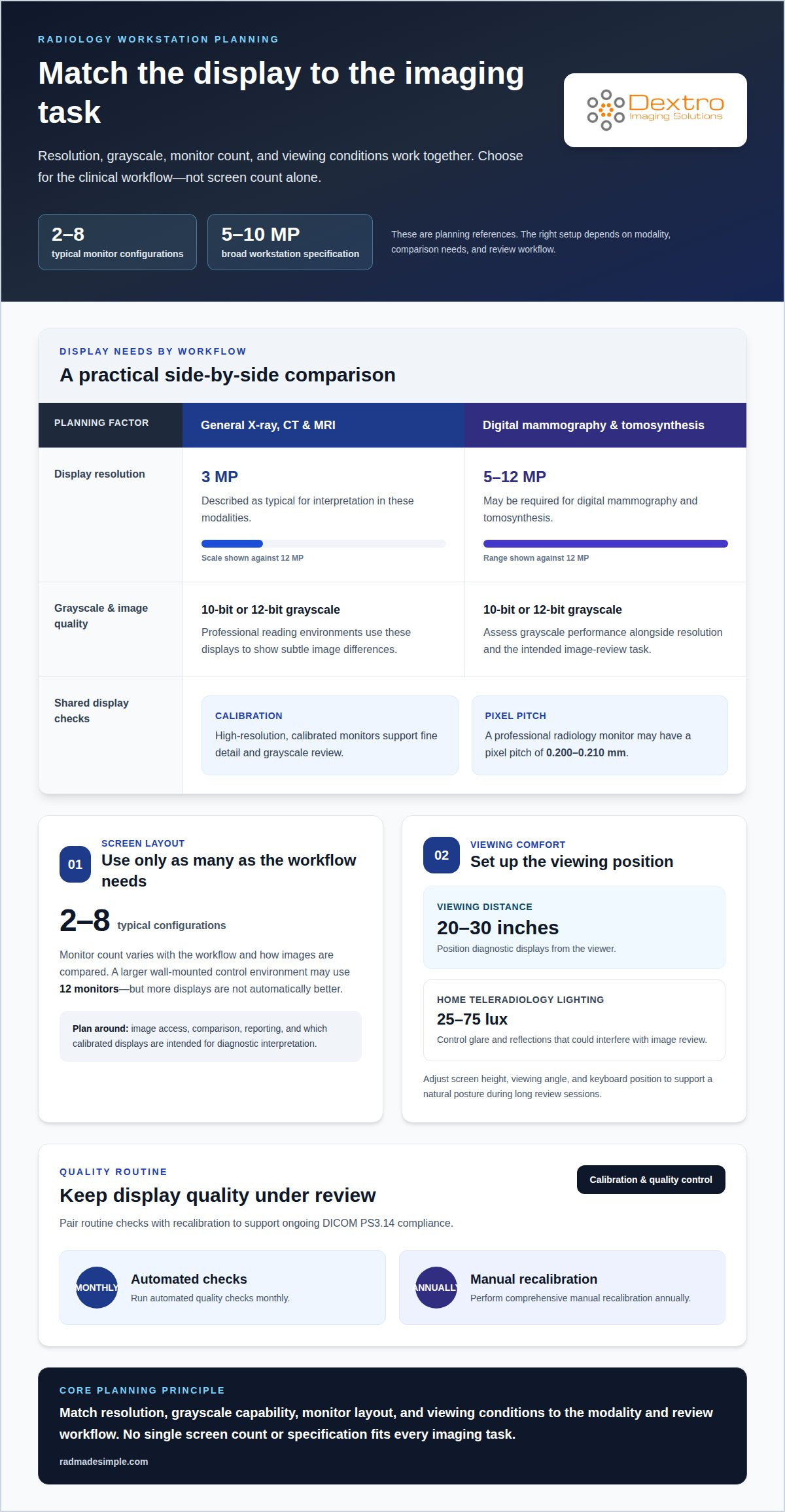
Choose diagnostic monitors around the imaging task, not screen count alone. A broad workstation specification may call for 5-10 megapixels, while 3MP displays are described as typical for general X-ray, CT, and MRI interpretation. Digital mammography and tomosynthesis may require 5MP to 12MP displays. These figures reflect different clinical needs, so match display capability to the modality and review workflow.
Grayscale performance matters alongside resolution. Professional reading environments typically use 10-bit or 12-bit grayscale displays to show subtle image differences. High-resolution, calibrated monitors support review of fine detail and grayscale variation. A professional radiology monitor may have a pixel pitch from 0.200 mm to 0.210 mm. Treat that specification as one part of the display assessment, alongside intended use and image quality.
Monitor placement affects viewing comfort during long review sessions. Position diagnostic displays 20 to 30 inches from the viewer, then adjust screen height and angle for a natural posture. Adjustable keyboard positioning can also reduce strain. For home teleradiology, the recommended room lighting is 25-75 lux; control glare and reflections so they don’t interfere with image review.
Ergonomics, calibration, and quality control belong in the workstation plan. Use adjustable monitor height, viewing angles, and keyboard positioning to help reduce strain. The recommended quality routine pairs monthly automated checks with comprehensive manual recalibration annually, supporting ongoing DICOM PS3.14 compliance.
Typical configurations range from 2 to 8 monitors, depending on the workflow and how images are compared. A larger wall-mounted control environment may use 12 monitors, but more displays aren’t automatically better. Set the layout around image access, comparison, and reporting tasks, with diagnostic images on the calibrated displays intended for interpretation.
Supported operating systems and browsers
Operating-system and browser compatibility depends on the PACS and image-viewing applications used in your department. A workstation can have strong processing performance yet still fail to display images correctly if its software environment is unsupported. Treat the operating system, browser, and application version as a coordinated configuration, whether you use installed software or browser-based image review.
For procurement, document the full software combination required for each workflow: operating system, browser, PACS access method, and image-viewing or reporting tools. Also determine how updates are managed, because changes to a browser or operating system can affect application functionality. For example, a web-based viewer used to open studies and prepare reports should remain compatible through the workstation’s regular update cycle.
Check modality coverage as part of compatibility testing. A clinical workstation should support images from X-ray, CT, MRI, and ultrasound, with viewing tools suited to each study. Confirm that image resolution, window and level controls, and review tasks work in the intended software environment. Test representative images and reporting workflows, not just whether the application launches.
Input devices also affect everyday efficiency. A standard mouse may suit some users, while a trackball or pen-style device offers a different way to navigate images. Pair the chosen device with wrist support and a comfortable keyboard position. The aim is precise pointer control without a tense wrist posture during repeated work.
Include technical support and maintenance in workstation planning. Support helps resolve technical issues and reduce downtime, while a defined maintenance process keeps operating systems, browsers, and imaging applications aligned. Assign responsibility for updates, troubleshoot display or access problems, and restore the intended software configuration after changes. These steps help preserve access to imaging and reporting functions as workstation software evolves.
Computing performance and GPU acceleration
CPU and GPU performance matter when a workstation renders images, processes studies, or handles complex computations. The CPU supports general application tasks, while the GPU accelerates supported graphics and image workloads. Set radiology workstation hardware requirements around the actual reading workflow: opening studies, reviewing images, and using 3D visualization tools. A strong specification on paper won’t help if the imaging application can’t use the hardware effectively.
Three-dimensional visualization places distinct demands on a workstation. Software may reconstruct volumetric images from CT or MRI data and let clinicians inspect anatomy from different views. This process uses computing resources for rendering and related calculations. For diagnostic use, assess performance with representative volumetric studies rather than routine two-dimensional image review alone.
Memory capacity affects how a system manages active applications and imaging data. A 64GB RAM configuration is identified as a benchmark for a home teleradiology workstation. Treat it as a planning reference for that use case, not a universal minimum. Study volume, application requirements, and simultaneous tasks should guide radiology workstation hardware requirements for other environments.
GPU acceleration is useful only when the imaging software supports it. Confirm that the viewer can use the graphics processor for functions such as rendering or 3D visualization. Then evaluate the complete system with its diagnostic display and normal clinical workflow. This shows whether the CPU, GPU, and memory work together effectively.
Prioritize responsiveness during real reading tasks, such as loading studies, changing views, and switching between applications. Delays can interrupt concentration; a consistent workflow supports focused diagnostic review. Hardware is one factor in accurate interpretation, alongside display quality, application behavior, and clinical judgment. Ergonomic design can support comfortable use, but it does not replace performance testing. Match computing capacity to the workload, especially when volumetric analysis is routine.
Clinical and radiographer workstation requirements
Clinical and radiographer workstations must support image review and the tasks around it. Match hardware, software, and ergonomics to each role’s workflow.
Workstation Hardware Specifications
Hardware specifications describe the computer, display, and connected devices that run imaging and reporting software. A workstation should support X-ray, CT, MRI, and ultrasound workflows, with applications for image analysis and post-processing. For general use, assess CPU, GPU, and memory against the software and workload. The 64GB RAM benchmark applies to a home teleradiology workstation, not every clinical setup.
Network Speed and Connectivity
Network speed and connectivity determine how efficiently studies move between the workstation, imaging systems, and PACS. For home teleradiology, the recommended bandwidth is 50-100 Mbps. High-volume reading or large 3D datasets may call for internet speeds over 200 Mbps. Secure connections and robust encryption help protect patient data during transmission.
Cybersecurity measures should include restricted user privileges, endpoint protection, secure authentication, and application-level threat protection. Choose backup hardware to fit the recovery plan, with protected copies of relevant data available if a workstation or storage device fails. Control access to backups and keep it separate from routine user access.
Radiographers benefit from software that supports acquisition and review, while radiologists need efficient image-viewing and reporting tools. An adjustable workstation, with suitable screen and keyboard positioning, can support comfortable use. During repeated image review, a well-positioned keyboard and input device can help limit strain and support productivity.
Align the workstation’s clinical, network, and security specifications with the imaging workflow before deployment. Explore workstation options for clinical image review and radiographer needs.
Dextro Imaging Solutions: Portable Radiology Workstations
Dextro Imaging Solutions offers Portable Radiology Workstations for teams assessing hardware for image review. They suit workflows that call for a portable setup. Dextro Reading Stations and specialized diagnostic display configurations are additional options for reading environments and clinical display needs.
Choose among these categories by starting with the workflow: where images will be reviewed, which display requirements apply, and how the workstation will be used. Radcom Compact is another option for evaluating a workstation configuration. These products provide a practical starting point for aligning equipment choices with clinical and radiographer needs.
Contact Dextro Imaging Solutions to discuss your radiology workstation requirements.
Make Your Next Workstation Decision with Confidence
Turn radiology workstation hardware requirements into a practical decision framework for your department. Start with the work the station must support, then match its configuration to the people using it and the setting for image review. This keeps purchasing discussions focused on clinical needs rather than specifications in isolation. Include radiologists, radiographers, and IT stakeholders so workflow, software compatibility, and security priorities are considered together.
Before settling on a configuration, identify the tasks that matter most and the constraints that shape daily use. A workstation designed around those priorities can support a more coherent approach to image review and reporting. If you’re ready to discuss options for your imaging environment, contact Dextro Imaging Solutions. A clear understanding of your workflow is a strong starting point, and the next step can be a confident one.
Frequently Asked Questions
What CPU, RAM, and storage are recommended for diagnostic radiology workstations?
Choose the CPU and storage around the imaging software, study volume, and tasks performed. A 64GB RAM configuration is a benchmark for home teleradiology, not a universal minimum. For example, a workstation handling 3D datasets and multiple active applications may need more capacity than one used for routine image review. Storage needs depend on whether studies are stored locally or accessed through PACS.
What monitor resolution, size, luminance, and grayscale requirements apply to radiology workstations?
Match resolution and grayscale capability to the diagnostic task: general X-ray, CT, and MRI commonly use 3MP displays, while digital mammography and tomosynthesis may call for 5MP to 12MP. Professional reading displays typically use 10-bit or 12-bit grayscale. Select screen size and luminance for the viewing environment and application, then use calibration and quality checks to maintain consistent image presentation.
How many monitors are recommended for radiology workstation setups?
Plan for the images and applications that need simultaneous viewing. Typical diagnostic workflows use 2 to 8 monitors, while specialized wall-mounted control environments may use 12. For example, a reader comparing prior and current studies may benefit from separate image displays, while a smaller setup may suit a workflow with frequent window switching. Arrange screens to support the actual review process.
What graphics card is needed for PACS and diagnostic imaging workstations?
Choose a GPU that supports the imaging application’s display and rendering functions; there is no universal graphics-card model for every PACS workstation. A setup used for 3D visualization needs graphics capability for volumetric image rendering, while routine review may have different demands. Confirm that the viewer can use the GPU, then assess performance with representative studies and the intended display configuration.
What are the differences between diagnostic and clinical review radiology workstations?
Diagnostic workstations are configured for image interpretation, with displays and calibration suited to discerning image detail and grayscale. Clinical review stations support viewing as part of broader patient care, where users may consult images alongside other clinical information. For example, radiographer workflows may prioritize image acquisition and review, while diagnostic reading emphasizes detailed comparison and interpretation.
What DICOM and ACR-AAPM requirements apply to diagnostic display workstations?
DICOM supports consistent medical-image transfer, storage, and display, including grayscale presentation addressed by DICOM PS3.14. Diagnostic display quality also depends on calibration and ongoing quality control. Apply the relevant ACR-AAPM guidance and facility procedures to assess display performance; hardware specifications alone don’t demonstrate compliance. A workstation’s display, imaging software, and quality-assurance process should work together.


