

Mobility alone doesn’t make a laptop ready for medical imaging. A portable diagnostic workstation is a mobile computer setup for accessing and reviewing medical images in DICOM-based workflows. It’s designed for radiologists and imaging professionals who work across locations, but its suitability depends on the display, imaging tasks, and clinical workflow.
Choosing a mobile system involves more than comparing processor speed or screen size. Battery life affects how long you can work away from power, while a durable chassis matters when equipment moves between rooms or sites. Display capabilities, connectivity, and setup support also determine how well a workstation fits into daily imaging work.
This guide explains who DICOM laptops are designed for and how to assess their practical fit. You’ll learn how imaging needs shape workstation requirements, what to consider in battery life and durability, and how deployment support can simplify setup. The goal is to help you choose based on your reading environment and workflow, not mobility alone.
Key Takeaways
- Match battery needs and chassis durability to how often and where the workstation will move.
- Map deployment support to your setup, connectivity, and ongoing technical needs.
- Prioritize display and workflow requirements for the imaging tasks you perform.
- Compare mobile and stationary setups by balancing portability with the demands of your reading environment.
Battery life and chassis durability
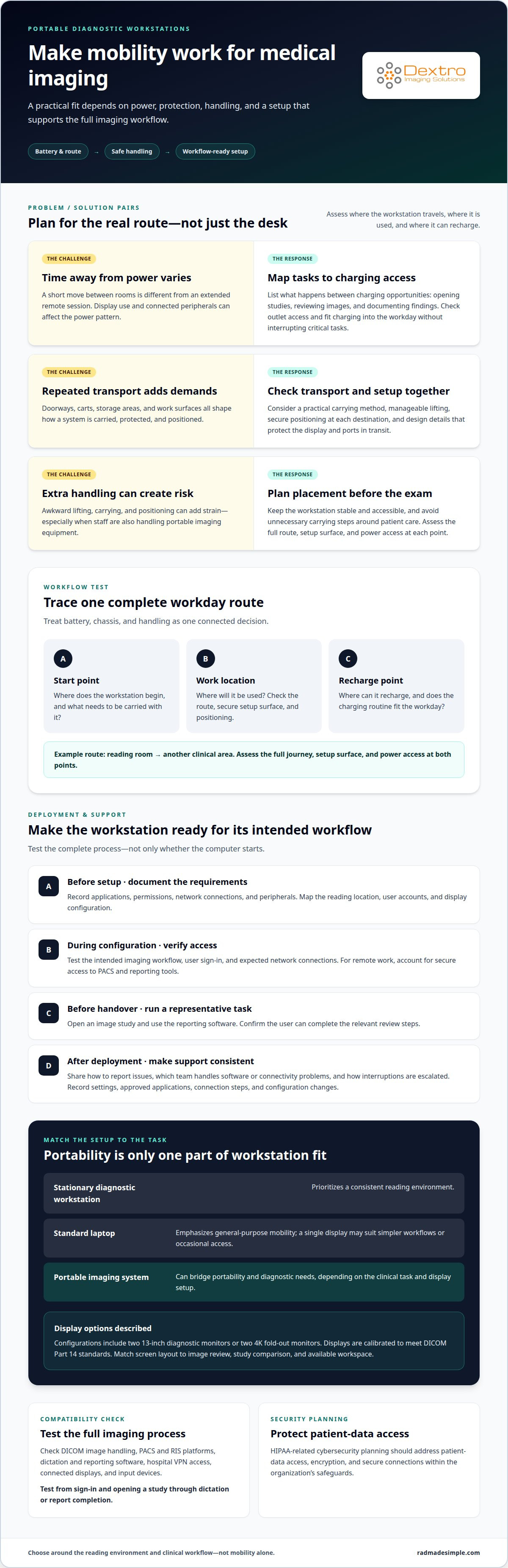
Mobility affects how a workstation is powered, carried, and positioned during imaging work. Assess battery performance and physical design against the route between reading locations, not just the desk setup.
Battery Life Considerations
Battery life is a matter of fit: compare the time you expect to work away from power with the demands of your imaging workflow. List the tasks performed between charging opportunities, such as opening studies, reviewing images, and documenting findings. Then consider how display use and connected peripherals affect that pattern. A portable diagnostic workstation used occasionally between rooms has different power demands from one used for extended remote sessions. Include access to outlets in your planning and consider how charging can fit into the workday without interrupting critical tasks.
Chassis Durability
Chassis durability describes how well the computer and its components withstand routine transport, handling, and repeated setup. Consider the route it travels, including doorways, carts, storage areas, and work surfaces. A system carried between home and a facility needs a practical way to transport it and a form that can be positioned securely at each destination. Look for design details that protect the display and ports in transit, and consider whether the device is manageable to lift and carry throughout a typical workday.
Ergonomic risks include awkward lifting, carrying, and positioning, particularly when a workstation must be moved while staff are also handling portable imaging equipment. A study published by Elsevier identified patient handling during portable exams as a high-injury-risk aspect of radiographers’ work. Plan equipment placement before the exam, keep the workstation stable and accessible, and avoid adding unnecessary carrying steps around patient care.
Use a simple workflow test before choosing: map where the workstation starts, where it will be used, and where it can recharge. For example, a radiologist moving between a reading room and another clinical area should assess the full route, setup surface, and power access at both points. This shows whether portability supports the work or creates avoidable handling. Consider weight, carrying method, charging routine, and protection in transit as one connected decision, rather than treating battery and chassis as separate specifications.
Deployment and technical support
Deployment makes a workstation a functional part of an imaging environment. Before setup, map the reading location, network access, user accounts, required applications, and display configuration. For example, a radiologist working remotely may need secure access to PACS and reporting tools. Configure a portable diagnostic workstation around those workflow requirements, rather than simply powering it on and handing it over.
Technical support should align with the system’s role and the organization’s processes. Define how users report issues, which team handles software or connectivity problems, and how interruptions are escalated. Record device settings and approved applications so support staff have a consistent troubleshooting reference. This preparation is especially useful when a portable diagnostic workstation moves between locations or users.
- Before setup: document applications, permissions, network connections, and peripherals.
- During configuration: test access to the intended imaging workflow and verify user sign-in.
- Before handover: run a representative task, such as opening an image study and using reporting software.
- After deployment: share support procedures and record configuration changes.
Test the complete workflow, not just whether the computer starts. Confirm that the user can connect to the organization’s network, open the required application, and complete the relevant review steps. If the portable diagnostic workstation will be used at different sites, test its expected connections at each location. This can reveal setup gaps before they interrupt routine work.
A clear deployment plan matters when multiple users or locations need consistent configurations. Keep handover notes practical, including the applications in use, connection steps, and support route. To explore radiology workflow considerations, see radiology workflow resources.
Medical imaging workstations
Medical imaging systems must support the required tasks, from image review to reporting and PACS access. HIPAA-related cybersecurity planning should address patient-data access, encryption, and secure connections within the organization’s safeguards.
Workstation Comparisons
A stationary diagnostic workstation prioritizes a consistent reading environment, while a standard laptop emphasizes general-purpose mobility. A portable imaging system can bridge those needs, but its value depends on the clinical task and display setup. Compare screen layout, image handling, and how the system fits into your reading location. For example, two diagnostic screens can support side-by-side review, while a single laptop display may suit simpler workflows or occasional access.
Software and Device Compatibility
Check that the workstation supports your team’s imaging and reporting workflow. Relevant systems include DICOM image handling, PACS and RIS platforms, dictation and reporting software, and hospital VPN access. Peripheral compatibility matters too: confirm that connected displays and input devices work with the intended setup. A compatibility review should test the full process, from signing in and opening a study to dictating or completing a report.
Display capability affects diagnostic work. Portable configurations include two 13-inch diagnostic monitors or two 4K fold-out monitors, with displays calibrated to meet DICOM Part 14 standards. Match the configuration to the images reviewed, the need to compare studies, and the available workspace. A compact layout can aid transport, while multiple screens can keep images and reporting tools visible together.
For cybersecurity, assess how the workstation handles patient information across each connection. Encryption, user permissions, and secure network access should align with the organization’s policies. The Dextro Portable Workstation includes built-in HIPAA-compliant encryption and supports major PACS and RIS platforms, as well as hospital VPNs. These capabilities address important parts of deployment, but teams still need to configure access and network use for their workflow.
Before deployment, test a representative case using the intended software and devices. Open a DICOM study, review it on the configured display, connect through the required network, and complete the reporting step. This practical sequence can reveal compatibility gaps before the workstation enters routine use.
How do portable diagnostic workstations compare with stationary workstations and laptops?
The main difference is how each setup balances mobility, display needs, and daily workflow. Compare them by the reading tasks and locations they need to support.
A stationary workstation suits a consistent reading room where equipment can stay configured. Displays, input devices, and reporting tools can remain arranged for repeated use. For example, a radiologist comparing studies while documenting findings may benefit from a stable, multi-screen setup. The trade-off is less flexibility when work shifts between rooms or sites.
A portable diagnostic workstation brings an imaging workflow to more than one location. It can suit radiologists who alternate between a central reading room, home, or clinical areas. The comparison is not simply portable versus fixed. Consider whether the mobile setup supports the same image review, reporting, and network access needed at each destination.
A standard laptop is easy to repurpose for general tasks, such as email or document review. But portability alone doesn’t make it suitable for diagnostic work. The key question is whether its display and configured software fit the intended imaging workflow. For example, a laptop used to access reports may have a different role from a system used for image interpretation.
Use these checks to compare options against your workflow:
- Location: identify where the reading happens, such as one reading room or multiple sites.
- Task: separate image review from reporting, administration, or occasional access.
- Setup: assess display arrangement, network access, and available workspace at each location.
- Continuity: decide whether the mobile system complements a fixed workstation or replaces it for specific tasks.
For example, a team may keep a stationary setup for routine reading and use a mobile system for work elsewhere. A radiologist who mainly reviews reports may need a different configuration from one reading diagnostic images. Define the primary task first, then compare how each setup supports it without adding unnecessary equipment or workflow steps.
Explore radiology workstation options to compare configurations with your imaging workflow in mind.
Dextro Imaging Solutions: Radcom Compact
Dextro Imaging Solutions offers Radcom Compact for organizations planning their medical imaging workstation setup. Consider it alongside Dextro Reading Stations, PACS Harmony, and aycan PACS when planning a connected imaging environment. The right starting point depends on the task: decide whether your priority is a reading station, PACS access, or a compact workstation component.
Use the workflow questions in this guide to frame your plans. Identify where images are reviewed, which systems need to work together, and whether staff work in one location or several. This gives the technology decision a practical focus and helps align it with your imaging requirements.
Contact Dextro Imaging Solutions to discuss how Radcom Compact may fit your medical imaging workflow.
Make your next workstation decision workflow-led
Turn your priorities into a practical plan before selecting a portable diagnostic workstation. Identify the users, work locations, imaging tasks, and systems it must support. Consider how those needs may evolve, too. A portable diagnostic workstation should suit current reading demands and work effectively within the broader imaging environment.
Dextro Imaging Solutions offers Radcom Compact and Dextro Reading Stations to help shape a setup around your workflow. As you evaluate a portable diagnostic workstation, clarify whether your priority is a reading station, diagnostic display, or another part of the imaging environment.
Share your workflow requirements and explore the available options with Dextro Imaging Solutions. A clear plan is a strong starting point for a more capable imaging environment.
Frequently Asked Questions
What is a DICOM laptop and who is it designed for?
A DICOM laptop is a mobile computer used to handle medical imaging data in DICOM workflows. It’s designed for radiologists and imaging professionals who need to access studies beyond a fixed reading room. For example, a specialist moving between facilities may use one to review images and prepare reports through authorized systems at each location.
What is a portable diagnostic workstation?
It’s a mobile computing setup configured for medical image review and related radiology tasks. Depending on the workflow, it can bring together a computer, diagnostic display, and imaging software. The right configuration depends on the work performed, the reading environment, and the systems the user needs to access. It may complement a fixed workstation or serve specific mobile reading needs.
What medical specialties use portable diagnostic workstations?
Radiology teams use these systems when imaging work takes place away from a fixed reading room. A portable diagnostic workstation can support radiologists reviewing studies across facilities or working remotely within an organization’s established workflow. Requirements vary by specialty: the modality, images being assessed, and reporting process all influence the equipment and software configuration needed.
What features and equipment should a portable diagnostic workstation include?
Start with the clinical task and build the configuration around it. A portable diagnostic workstation may combine a computer, diagnostic display, image-viewing software, and access to the organization’s imaging systems. Dictation tools or additional screens can support particular reporting and review workflows. For example, a user comparing images while documenting findings may benefit from keeping both tasks visible in the workspace.
What power, battery life, and connectivity options do portable diagnostic workstations offer?
Power and connectivity depend on the system configuration and where it will be used. Plan for charging access, the network connections needed for imaging applications, and the organization’s approved remote-access process. A reader working outside the main facility, for example, needs a suitable connection to authorized systems. Map these requirements to each intended work setting before deployment.
How do you set up and maintain a portable diagnostic workstation?
Configure access to the required imaging and reporting systems, then arrange the display and input devices for the user’s tasks. Test a complete workflow, such as opening a study and preparing a report, before regular use. For upkeep, follow the organization’s procedures for software updates, account management, equipment care, and technical support. Keep setup instructions accessible to authorized users.


