

What if the best mobile PACS workstation for your team isn’t the lightest one? Portability matters, but the setup also needs to support its intended clinical task, connect reliably to PACS, and protect access to imaging data. A laptop, compact workstation, and mobile viewer can serve very different needs.
To choose well, start by defining where and how radiologists will use the system. Then match its display, computing, connectivity, software, and security to that workflow. Occasional image access and sustained diagnostic reading, for example, call for different considerations.
This 2026 buying guide compares mobile computers, compact workstations, and mobile PACS access so you can assess the trade-offs and identify a suitable approach. It covers clinical and operational requirements, hardware and software criteria, network reliability, security, reporting, and ongoing support. Dextro Imaging Solutions’ portable radiology workstations and imaging workflow solutions offer a starting point for evaluating your options.
Key Takeaways
- Start with the clinical task and work setting to define what portability needs to support.
- Compare mobile workstations, compact workstations, and mobile viewers by workflow fit, not convenience alone.
- Assess hardware against image volume, display needs, PACS access, and reporting tasks.
- Plan network access, identity controls, data handling, device management, and support before deployment.
- Use a focused buyer checklist to align display, PACS integration, security, and deployment priorities across your team.
Mobile PACS Workstation Role in Radiology Workflow
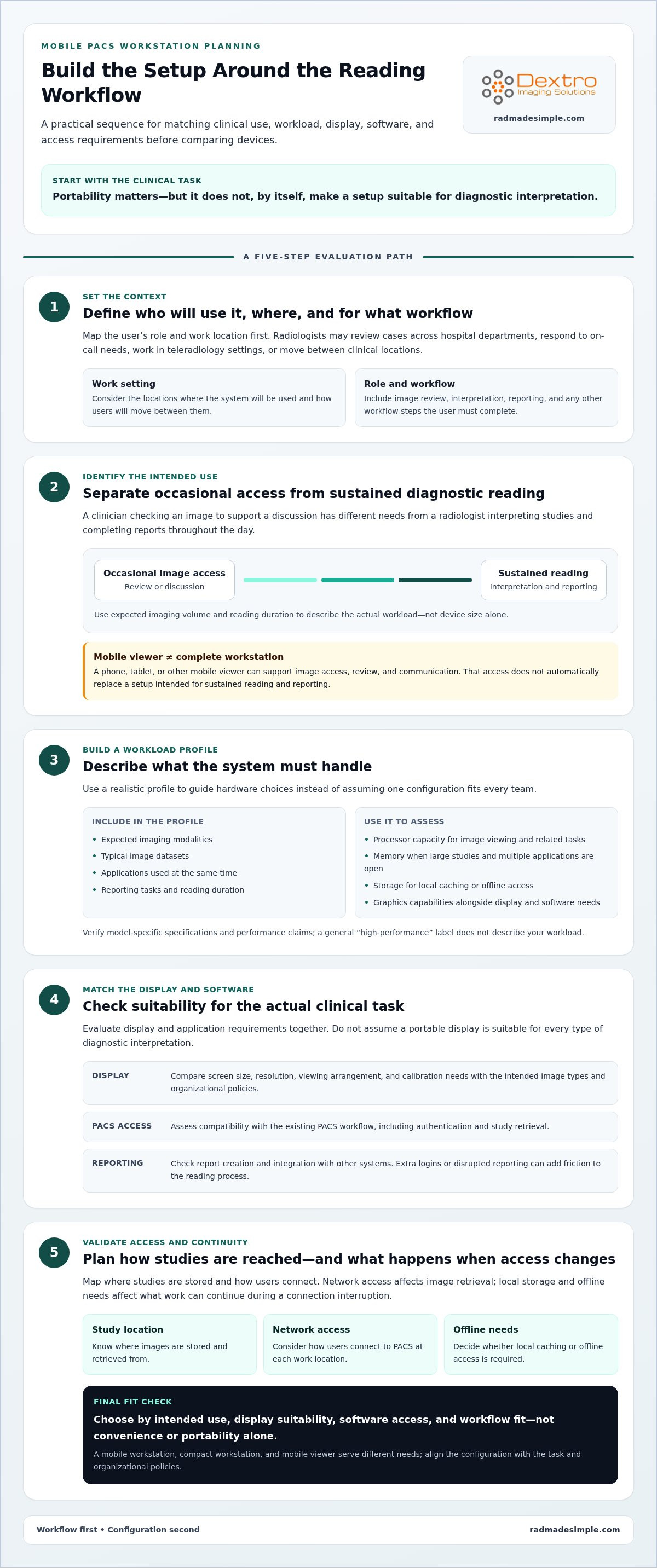
Start with the clinical workflow, not the device. A mobile PACS workstation is a portable computing setup for accessing medical images and related workflow tools. Its value depends on the task, where the system will be used, and whether the user needs occasional image access or sustained diagnostic reading.
PACS provides a way to store, retrieve, manage, and view medical images. For a foundational overview of the Picture Archiving and Communication System (PACS), including the image types it handles, see this reference. PACS access alone does not establish that a device is suitable for diagnostic interpretation. Intended clinical use, display setup, software capabilities, and organizational policies all affect the requirements. Define those needs before comparing hardware.
Which radiology workflows benefit from a mobile PACS workstation?
Mobility can help radiologists review cases across hospital departments, respond to on-call needs, work in teleradiology settings, or move between clinical locations. Occasional access is different from a full reading workload. A clinician checking an image to support a discussion may need a different setup from a radiologist interpreting studies and completing reports throughout the day.
Match the configuration to the user’s role, expected imaging volume, and work location. A workstation used for brief review between departments, for example, has different demands from one intended for extended reading at multiple sites. Reporting tools, network access, and the physical setup also affect how smoothly the workflow runs.
Mobile PACS workstation or mobile image viewer?
A phone, tablet, or other mobile viewer may provide convenient access to images and case information. That access can support review and communication, but it does not automatically replace a complete workstation designed for sustained reading and reporting. Identify whether the user needs to consult images, complete a workflow step, or make a diagnostic interpretation, then align the setup with applicable clinical policies.
For a related look at portable configurations, see the traveling radiologist workstation setup. Treat portability as one requirement within a broader clinical, technical, and operational decision. Compare the user, imaging workload, intended use, PACS and reporting workflow, and support needs rather than relying on device size alone.
The Hardware and Software Behind a Reliable Mobile PACS Workstation
A reliable setup is more than a portable computer. A mobile PACS workstation combines computing hardware, a task-appropriate display, PACS access, reporting tools, and dependable network connectivity. Each part needs to work with the others to support the workflow, from retrieving studies to reviewing images and completing reports.
Assess components against the actual workload, not a generic “high-performance” label. Processor capacity affects how smoothly applications handle image viewing and related tasks. Memory matters when large studies and multiple applications are open together. Storage needs depend on whether the workflow requires local caching or offline access, while graphics capabilities should be evaluated alongside display and software requirements. Verify model-specific specifications and performance claims before relying on them.
How should you evaluate mobile workstation performance?
Build a realistic workload profile: expected modalities, typical image datasets, concurrent applications, and reporting tasks. A setup for occasional case review may face different demands from one supporting sustained reading and report production. Use the profile to prioritize hardware capabilities instead of assuming a single processor, memory, or storage configuration will suit every team.
Map where studies are stored and how users will connect to them. Network access affects image retrieval, while local storage and offline needs influence what work can continue during a connection interruption. Treat these as workflow and deployment decisions, not just computer specifications.
What display and PACS capabilities belong in the evaluation?
Match the display to the intended clinical task, image types, and organizational requirements. Compare screen size, resolution, viewing arrangement, and calibration needs against the organization’s established policies. Do not assume a portable display is suitable for every type of diagnostic interpretation.
Evaluate compatibility with existing PACS and reporting workflows. Consider authentication, study retrieval, report creation, and integration with other systems. A setup that runs well but adds extra logins or disrupts reporting can create friction across the reading process. Dextro’s portfolio includes portable radiology workstations, diagnostic monitors, PACS solutions, and reporting tools. Explore Dextro’s radiology workstation solutions as you map the components your workflow needs.
Compare Mobile PACS Workstation Configurations by Use Case
The right configuration depends on how often a radiologist moves, how long they read, and whether the task requires diagnostic interpretation. A mobile PACS workstation can support a full reading workflow, while a compact workstation or mobile viewer may better fit other needs. These options are not interchangeable. Match intended use, display suitability, software access, and organizational governance before choosing.
| Configuration | Portability | Reading and display | Connectivity and PACS workflow | Deployment fit |
|---|---|---|---|---|
| Mobile workstation | Designed to move between locations or support travel. | Can be configured around the intended reading task and display setup. | Needs reliable PACS access and a workflow for reporting and peripherals. | Useful for travel, shared coverage, or users working across clinical sites. |
| Compact workstation | Portable within a facility, but typically suited to a more consistent setup. | Can support a dedicated work area with appropriate displays and peripherals. | Can be integrated into local PACS and reporting workflows. | Fits limited desk space, home reading, or a semi-permanent location. |
| Mobile viewer | Highly portable and convenient for access on the move. | Display and controls may suit brief review, but don’t assume diagnostic suitability. | Provides image access according to the viewer and organization’s workflow. | Useful for occasional review or shared coverage where full reading isn’t required. |
When does a portable workstation make more sense than a fixed reading station?
Frequent relocation and limited desk space can favor a portable or compact setup. A fixed station may better suit sustained, high-volume reading when the user works in one place and relies on a consistent display arrangement and peripherals. Consider the radiologist’s usual work location, setup time, and whether external displays, input devices, or other accessories need to travel with the system. For fixed-station context, consult a guide to radiology reading workstations.
How should a team compare diagnostic and general-purpose mobile setups?
Separate image access and general review from workflows involving diagnostic interpretation. For each use case, assess the intended clinical task, display suitability, PACS and reporting access, and the organization’s policies. A general-purpose mobile device may help a clinician review a case, but that alone does not establish that it can replace a diagnostic workstation. Check the configuration against the organization’s governance before deployment.
Plan PACS Integration, Security, and Deployment Before You Buy
A mobile PACS workstation needs to fit the organization’s existing systems and safeguards, not operate as a standalone purchase. Planning the implementation helps surface access, connectivity, and support needs before deployment. Requirements vary with intended clinical use, organizational policies, and environment.
- Document the workflow. Identify users, work locations, imaging tasks, reporting steps, and handoffs. Distinguish routine remote reading from occasional access, and note what must happen if a network or system becomes unavailable.
- Map PACS and reporting needs. Inventory current PACS, reporting tools, user roles, and required image workflows. Define how users will authenticate, retrieve studies, and complete reports. Identify integration dependencies and who owns each part of the process.
- Plan access controls. Work with the organization’s IT and security teams to define approved remote access methods, identity management, device controls, and data-handling practices. Assign responsibility for managing the workstation and updating access when users or roles change.
- Validate deployment. Plan installation and configuration with the implementation team, then test representative workflows, network access, reporting, and user permissions. Include onboarding and a process for routing technical issues to the responsible support team.
What should the PACS integration plan cover?
Test realistic scenarios, not just whether the workstation can open PACS. Confirm that intended users can retrieve relevant studies and complete the reporting workflow at their expected work locations. Include training on the approved process. For broader governance context, use a radiology equipment compliance support checklist alongside your organization’s policies.
How can teams maintain secure and dependable remote access?
Agree on approved access methods and authentication with the teams responsible for security and infrastructure. Consider network availability at each location, what work can continue during an interruption, how downtime procedures will be communicated, and who coordinates technical support. Define device management and data-handling responsibilities before rollout. Avoid assuming one security or connectivity approach suits every environment.
Dextro supports imaging workflow planning through portable workstation hardware, PACS solutions, and software integration. Review Dextro’s imaging workflow solutions as you plan deployment around your PACS, reporting, and support needs.
- Workflow and user roles are documented.
- PACS, reporting, and access requirements are mapped.
- Security, device, and data responsibilities have owners.
- Testing, onboarding, downtime, and support plans are defined.
Choose a Mobile PACS Workstation That Fits Your Organization
A strong buying decision starts with a clear use case, then connects the workstation, display, PACS, and support plan into one workable setup. A mobile PACS workstation should fit the user’s clinical task and daily environment, not simply offer portability. Use this checklist to keep procurement focused:
- User and workflow: Identify who will use the system, where they’ll work, and whether their tasks involve occasional review or sustained reading and reporting.
- Intended clinical use: Define the task and align the configuration with organizational policies for image review or diagnostic interpretation.
- Display: Assess the display arrangement and suitability for the intended work, including any applicable calibration needs.
- PACS and reporting: Map image access, authentication, reporting tools, and integration with existing systems.
- Security and deployment: Set expectations for approved access, device management, testing, installation, and user onboarding.
- Support: Assign ownership for maintenance, software integration, and technical support after deployment.
Which Dextro solutions relate to mobile PACS workflows?
Dextro offers Portable Radiology Workstations for teams evaluating mobile hardware. Dextro Reading Stations provide a broader workstation context, while PACS Harmony is a PACS offering for consideration as part of the imaging workflow. PACS software is one component of the solution, not the workstation hardware itself. Dextro also supports installation, maintenance, and software integration, helping organizations plan for deployment and ongoing operational needs alongside equipment selection.
Priorities vary by organization. A hospital may need to support users moving between departments while fitting established systems and access policies. An imaging center may focus on consistent workflows across reading locations and coordination with reporting tools. A teleradiology team may place greater emphasis on remote access, connectivity, and a stable setup across locations. In each case, document the intended use first to make trade-offs easier to evaluate without assuming one configuration suits every team.
What information should procurement teams prepare?
Before comparing options, gather the details that will shape configuration and deployment: users and roles, work locations, imaging modalities, expected workload, current PACS, reporting tools, and integration needs. Add the organization’s requirements for display use, security, connectivity, installation, maintenance, and ongoing support. A concise requirements brief gives procurement, IT, radiology, and implementation teams a shared basis for evaluating fit.
With those requirements in hand, take the next step: Discuss a mobile radiology workstation solution with Dextro.
Turn Your Workflow Requirements Into the Right Setup
A successful mobile PACS workstation decision starts with the work it must support. Define intended clinical use, then assess display suitability, hardware performance, PACS and reporting access, security, and deployment needs. Compare portable, compact, and viewer-based configurations against those requirements rather than treating mobility as the deciding factor.
Plan beyond the equipment, too. Network access, integration with existing systems, installation, maintenance, and ongoing support all shape how well a setup fits daily radiology work. Dextro Imaging Solutions offers portable radiology workstations and Dextro Reading Stations, along with PACS solutions and support for installation, maintenance, and software integration.
Ready to move from requirements to options? Explore Dextro’s portable radiology workstation solutions and take the next step toward a setup aligned with your team’s workflow.
Frequently Asked Questions
What is a mobile PACS workstation?
A mobile PACS workstation is a portable computing setup for accessing medical images and related radiology workflow tools. Depending on its configuration and intended use, it may support image review, reporting, or diagnostic work. The term does not mean every laptop or tablet is suitable for diagnostic interpretation. Evaluate the display, software, access controls, and clinical requirements together to determine whether the complete setup fits users’ tasks.
Can a mobile PACS workstation be used for diagnostic reading?
It can support diagnostic reading only if the complete setup is appropriate for that intended use and meets the organization’s clinical, technical, and governance requirements. Portability alone does not establish suitability. Assess the display and calibration approach, PACS workflow, working environment, and applicable organizational policies. Validate the configuration as a whole within the intended workflow rather than treating individual hardware features as proof of suitability.
What is the difference between a mobile PACS workstation and a mobile image viewer?
A mobile image viewer generally provides image access or review on a portable device, while a workstation may combine computing, display, PACS access, reporting, and other workflow components. The distinction depends on the solution and its intended use. Decide whether users need occasional access, clinical review, report creation, or diagnostic interpretation. Then compare the configuration and software with that task, since a viewer does not automatically replace a complete workstation.
How do I choose a mobile workstation for PACS?
Start by documenting users, imaging workload, modalities, work locations, and intended clinical tasks. Then assess processing capacity, memory, storage, display needs, PACS and reporting compatibility, secure access, connectivity, support, and deployment. Consider whether users must handle large studies while running reporting tools or access images from multiple locations. Compare each configuration with the documented requirements and verify model-specific capabilities before finalizing procurement.
Can a mobile PACS workstation work without an internet connection?
Offline functionality depends on the workstation, software, and configured workflow. Some solutions may support selected local tasks, while image retrieval, synchronization, reporting, or other functions may require network access. Identify which activities need to continue during a connection interruption, then test offline behavior with the intended configuration. Do not assume all mobile setups provide the same continuity, or that locally available images and tools will cover every task.
What security considerations apply to a mobile PACS workstation?
Consider authentication, user permissions, device management, approved network access, data storage, software updates, and procedures for lost or shared devices. Requirements vary by organization and deployment environment. Involve imaging IT and security teams when planning access and data handling, and assign responsibility for device settings and user access. The workstation should fit existing governance processes, with clear ownership for protecting access to imaging systems and information.
How does a mobile PACS workstation connect to existing radiology systems?
Integration typically depends on the organization’s PACS, reporting applications, user accounts, network, and configuration. Map the required image retrieval, viewing, reporting, and access workflows, then test them before routine use. Confirm that intended users can access the studies and reporting tools needed for their tasks. Document current systems and workflow requirements early in procurement to guide the integration approach.


