

Could a display labeled for clinical review fit your radiology workflow without being the right screen for primary interpretation? That distinction is central to assessing the jusha r241m. Jusha places the model in its Clinical Review category, but the label alone doesn’t establish suitability for diagnostic reading. Match the display’s stated role to the tasks it will support and the requirements for those tasks.
When product information is limited, a model name and category aren’t enough to make a sound decision. This guide explains the R241M’s stated identity, outlines the technical details to assess, and shows how to consider compatibility with your workstation and imaging workflow. You’ll learn how clinical review differs from primary diagnostic interpretation, what to verify in current manufacturer documentation, and how to evaluate the display alongside PACS, workstations, and other imaging equipment. The goal is a practical, workflow-first assessment of whether the display fits its intended use.
Key Takeaways
- Understand what the jusha r241m’s Clinical Review label means and why intended use matters when distinguishing image review from primary diagnostic interpretation.
- Use a focused checklist to identify the specifications and documentation relevant to your imaging tasks.
- Compare monitor categories by intended use, documented capabilities, and workflow needs rather than relying on model names alone.
- Assess compatibility across the workstation, imaging software, connectivity, setup, and clinical workflow.
- Consider how a display fits into a broader imaging environment alongside workstations, PACS, and other diagnostic equipment.
What Is the Jusha R241M, and What Does Clinical Review Mean?
Jusha identifies the R241M on its manufacturer website as a display in the Clinical Review category. That establishes its broad positioning, but not every detail needed to assess a particular setup. Before selection, use current manufacturer documentation to verify the model’s specifications, intended use, and any stated limitations.
Clinical review means viewing medical images for clinical reference and communication, rather than relying on the display for primary diagnostic interpretation. For example, a clinician might refer to an image during a care discussion or review it at a clinical workstation. A radiologist’s primary read may have different display and system requirements. Let the task and its documented requirements, not the label alone, guide your evaluation.
How Clinical Review Differs from Primary Diagnosis
“Clinical review” describes a workflow category. On its own, it doesn’t establish that a monitor is suitable for primary diagnosis. A screen used to refer to images during a care discussion serves a different purpose from one used for primary radiological interpretation, and the two tasks may have different display and system requirements. Don’t infer diagnostic suitability from a product name or a single technical specification.
What the R241M Product Listing Establishes
The manufacturer’s product category identifies the R241M as a Jusha clinical review display. That is a useful starting point for understanding its stated role, but it isn’t a complete technical specification sheet. Product-page details can also vary across listings. Before comparing models or planning deployment, confirm resolution, physical display dimensions, luminance, color or grayscale capabilities, connectivity, and intended-use limitations in current manufacturer documentation.
Start with the task, not the headline specification
Technical figures matter in relation to the images, software, viewing conditions, and decisions the screen must support. First identify who will use the display and what they’ll do: refer to images, review them as part of a care workflow, or perform primary diagnostic interpretation. Then establish the requirements for that task before weighing individual specifications.
This sequence helps avoid a common buying mistake: treating one number as proof of suitability. Resolution describes an aspect of a display, but doesn’t establish that the monitor meets every requirement of a particular diagnostic workflow. A clinical review category helps orient the evaluation, but buyers still need documentation about the model and its intended role. Keep verified facts separate from assumptions as you assess the jusha r241m.
For a practical first pass, separate product information from workflow needs:
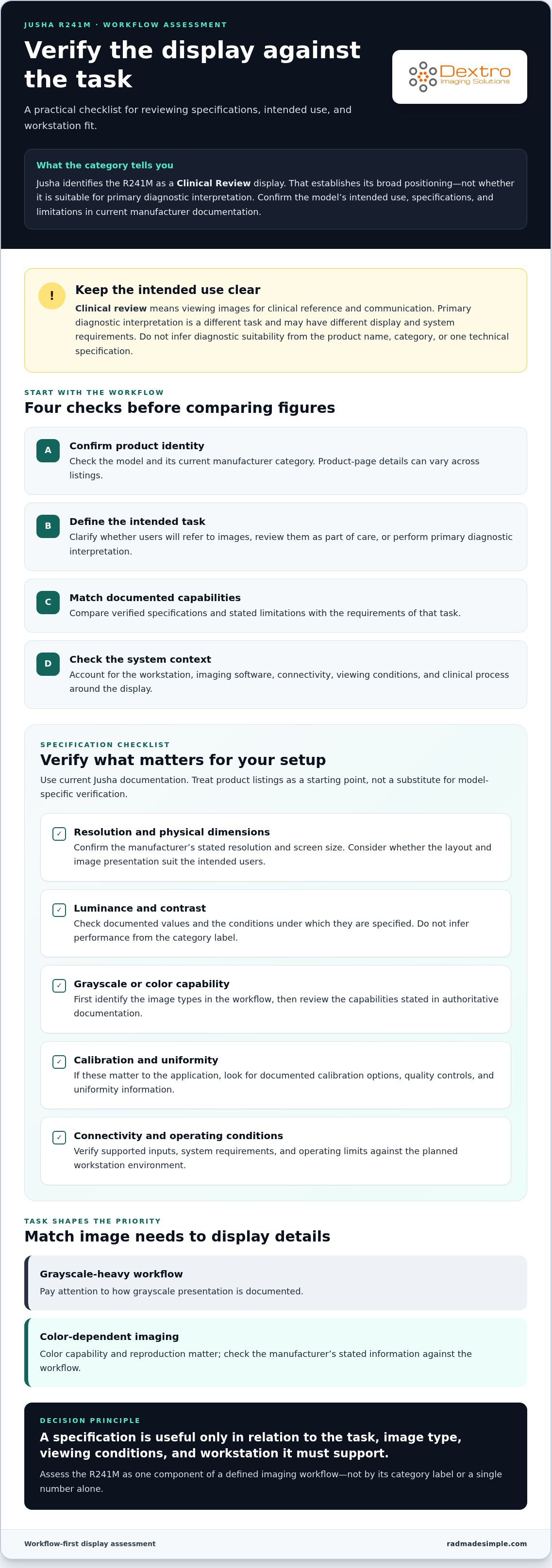
- Product identity: Confirm the model and its current manufacturer category.
- Intended task: Define whether users need clinical reference, review, or primary interpretation.
- Documented capabilities: Match verified specifications and limitations to that task.
- System context: Account for the workstation, software, and clinical process around the display.
This gives you a grounded basis for the specification review that follows. Assess the display as one component of a defined imaging workflow, not by its category label alone.
Which Jusha R241M Specifications Matter for Your Imaging Workflow?
Specifications are useful when they answer a workflow question. A resolution figure may help you understand image detail, but it doesn’t establish whether a display suits a particular modality, task, or workstation. Treat product listings as a starting point, then verify the details that affect your setup against current manufacturer documentation.
A single resolution figure cannot establish workflow suitability because the task, image type, display characteristics, and workstation all shape the viewing experience. A display used to refer to images during clinical discussions may have different priorities from one supporting grayscale-heavy review or color-dependent imaging. Begin with the intended task, then assess the specifications against it.
The Technical Details to Verify
Build a model-specific checklist rather than filling gaps with assumptions. Confirm the R241M’s listed resolution and other technical claims against current Jusha documentation before using them for selection or system planning.
- Resolution and dimensions: Check the manufacturer’s stated resolution and physical screen size. Consider whether the layout and image presentation suit the intended users.
- Luminance and contrast: Confirm documented values and the conditions under which they’re specified. Don’t infer performance from a category label.
- Grayscale or color capability: Establish which image types the workflow requires, then review capabilities stated in authoritative documentation.
- Calibration and uniformity: If these matter to the application, look for documented calibration options, quality controls, and uniformity information.
- Connectivity and operating conditions: Verify supported inputs, system requirements, and operating limits against the planned workstation environment.
Match Display Requirements to the Clinical Task
Specification priorities depend on image content. For a grayscale-heavy workflow, pay attention to how grayscale presentation is documented. For color-dependent imaging, color capability and reproduction matter. Neither requirement can be judged from resolution alone. Identify the modality, image-review task, and viewing environment before comparing technical figures.
The display also operates as part of a system. Workstation hardware, graphics output, operating software, image-viewing applications, and configuration can affect image appearance and how smoothly users work. A specification may look suitable in isolation yet leave a connection or software requirement unresolved. Record those dependencies alongside the monitor criteria.
For broader context on evaluating display categories and their roles, the Jusha medical monitor professional reference guide can help frame the comparison. Then map documented R241M details to your workflow rather than treating a general monitor overview as model-specific proof.
Keep the assessment practical: define the clinical task, identify image and modality needs, check the manufacturer’s specifications, and compare them with workstation and software requirements. If you’re also considering the wider Jusha diagnostic monitor options, apply the same workflow-first approach to each system.
How Should the R241M Compare with Other Monitor Options?
A useful comparison starts with purpose, not a ranking. The Jusha R241M is listed in the clinical review category, while standard product documentation indicates a 2MP resolution. These details help identify the model, but don’t establish how it compares with displays intended for other tasks. Use current manufacturer documentation for model-specific claims, and assess every option against the same workflow requirements.
The table separates category-level considerations from model-specific evidence. “Not established here” means a value shouldn’t be assumed; it isn’t a statement about the product’s capability.
| Display category | Intended use | Documented basis | Workflow requirements to assess |
|---|---|---|---|
| Jusha R241M clinical review display | Clinical image review, as indicated by its product category | Product documentation states 2MP resolution. Verify other specifications and intended-use limitations in current manufacturer documentation. | Confirm the review task, modality, workstation compatibility, and any requirements for image presentation. |
| Diagnostic display | Diagnostic interpretation, where supported by the manufacturer’s intended-use documentation | Evaluate each model’s stated use and specifications individually. Category alone doesn’t establish suitability for a particular diagnostic task. | Match documented capabilities and system requirements to the intended interpretation workflow. |
| General office display | General computing and non-diagnostic tasks | Assess the particular display’s documentation; don’t assume it meets medical imaging requirements. | Determine whether the task is administrative or clinical image review, and whether the display’s documented capabilities fit. |
R241M Versus a Diagnostic Display
A clinical review label and a diagnostic label describe different positioning, but neither label alone proves suitability for a specific use. Compare documented intended-use statements and verified specifications. A display used for reference during a care discussion shouldn’t automatically be treated as appropriate for primary interpretation. For additional selection context, see this diagnostic monitor versus consumer monitor comparison.
When a Different Display Category May Fit Better
Match the required task to the manufacturer’s category and documentation. Clinical review may fit non-primary image viewing; a diagnostic display may be relevant to a defined interpretation workflow; a general office display may suit administrative work. The deciding factors are the use case and verified system requirements, not a broad claim that one category is universally better.
Resolution belongs in the comparison, but it must be read alongside intended use. A number doesn’t describe every aspect of image presentation, establish compatibility, or show whether the display meets the requirements of a specific workflow. For a fair comparison, use the same criteria for every option: stated purpose, documented specifications, workstation fit, and operating needs. If information is missing for one model, mark it as undocumented rather than estimating or borrowing another display’s figures.
For teams assessing Jusha options as part of a broader workstation plan, Jusha diagnostic monitor options can be considered within the overall imaging setup, with selection guided by the intended task and system requirements.
How to Assess R241M Compatibility, Setup, and Ongoing Requirements
Compatibility is a system-level question. The display must fit the intended clinical task, workstation configuration, software environment, and deployment plan. Use a consistent sequence to assess the Jusha R241M, and base model-specific setup or maintenance decisions on current manufacturer documentation rather than assumptions.
- Define the task. Record who will use the display, what images they’ll view, and whether the task is clinical review or another workflow. This sets the criteria for the rest of the assessment.
- Document system requirements. Capture the workstation configuration, operating environment, graphics output, and imaging software. Note relevant requirements stated in the software or equipment documentation.
- Verify connectivity. Compare the workstation’s available connections with the display’s documented inputs and supported operating conditions. Don’t infer connection support from appearance or from another monitor model.
- Plan deployment. Identify the location, users, installation steps, and dependencies across the workstation and software. Coordinate the setup as an imaging-system change, not a monitor swap in isolation.
- Validate the workflow. After deployment, follow the facility’s established process to confirm that the system supports the intended task. Document issues and resolve them through the appropriate technical and clinical workflow.
Check Workstation and Software Compatibility
Before deployment, create a configuration record covering the workstation model and components, operating environment, relevant software, and available display connections. Compare it with authoritative documentation for the R241M and connected system. This makes gaps visible early. Avoid assuming compatibility with a particular PACS or application unless the relevant documentation supports that configuration.
Plan Validation and Maintenance
Separate facility-wide image-quality validation processes from instructions specific to the display. Use only manufacturer-documented calibration procedures, maintenance intervals, and service requirements for the model. If those instructions call for a particular tool or process, include it in the deployment plan. Don’t create a calibration schedule or infer a maintenance need from another display category.
Broader readiness planning can also include equipment records, ownership, and operational procedures. The 2026 radiology equipment compliance checklist offers additional context for organizing equipment-readiness considerations. Apply relevant facility processes alongside, not instead of, model-specific instructions.
Keep the final decision trail concise: intended task, documented requirements, workstation and software details, connection fit, deployment plan, and validation approach. This record helps technical and clinical stakeholders review the same assumptions and makes future changes easier to assess. Dextro Imaging Solutions supports installation, maintenance, and software integration for imaging equipment. Explore imaging workflow support.
Where the Jusha R241M Fits in a Complete Imaging Setup
A display is one part of an imaging environment, not a complete solution on its own. Its role depends on the task it supports and how it works with the workstation, imaging software, and clinical process around it. Evaluate the Jusha R241M in that context: use its stated category as an initial guide, then base the decision on documented specifications, system fit, and operational needs.
This approach keeps the decision grounded. A display that fits a review task still needs to integrate into the intended setup. A workstation also depends on the software and supporting equipment required by its users. Treat the monitor, workstation, and workflow as connected parts of the same assessment.
Build a Monitor Decision Record
Create a short record that separates established facts from open requirements. Start with the clinical task and users, then note the model specifications verified against current documentation. Keep unresolved details visible rather than filling gaps with assumptions. This gives technical and clinical stakeholders a shared reference for evaluating fit and planning the next step.
- Intended use: Define the task the display needs to support and distinguish it from other uses.
- Verified model information: Record documented specifications and intended-use statements, with their source.
- Open requirements: List details that still need documentation or assessment.
- System fit: Include workstation configuration, software environment, and connectivity needs.
- Operations: Capture deployment, workflow validation, maintenance, and support considerations.
Explore Dextro’s Broader Imaging Solutions
Dextro Imaging Solutions offers Jusha diagnostic monitors and imaging workstation solutions. Consider these alongside the R241M when planning the equipment and workflow your team needs, using the intended task and system requirements to guide the selection.
Hardware selection is only one part of implementation. Dextro also supports installation, maintenance, and software integration for imaging equipment, connecting display decisions with the workstation and its operating environment. This broader view helps teams plan equipment, deployment steps, and integration needs together.
Before selecting a display, bring the intended task, verified documentation, compatibility requirements, and operational plan into one view. That makes it easier to assess whether a clinical review display belongs in the setup and what else the workflow requires. Explore Dextro imaging solutions to consider Jusha diagnostic monitors and imaging workflow support as part of a complete system.
Turn Your Display Assessment into a Workflow Plan
Before committing to the jusha r241m, turn your evaluation into clear acceptance criteria. Define the task the screen must support, identify the documentation your team needs, and agree how the installed setup will be assessed in its working environment. This gives clinical, technical, and operational stakeholders a shared basis for the decision and helps keep equipment selection aligned with the wider imaging workflow.
If the assessment points toward a broader workstation or display review, consider the full environment rather than treating the monitor as an isolated purchase. Dextro’s Jusha diagnostic monitors and imaging solutions, supported by installation, maintenance, and software integration, can connect equipment planning with day-to-day operations.
Explore Dextro’s diagnostic monitors and imaging solutions to plan your next step with the wider imaging setup in view. A well-defined workflow gives your team a stronger foundation for equipment decisions.
Frequently Asked Questions
What is the Jusha R241M monitor used for?
The Jusha R241M is positioned as a clinical review display for viewing medical images in non-primary diagnostic workflows. For example, a clinician may refer to an image during a care discussion or at a clinical workstation. Use the product’s stated role as a starting point, then match it to your facility’s image-viewing tasks. The category label alone doesn’t establish suitability for every application.
Is the Jusha R241M intended for primary diagnostic interpretation?
The R241M is categorized as a clinical review display, which doesn’t establish that it’s intended for primary diagnostic interpretation. Before using any display for a primary read, verify the manufacturer’s intended-use statement and the requirements for that diagnostic task. If the documentation doesn’t establish suitability, don’t rely on the model name or a resolution figure as proof that it’s appropriate for primary interpretation.
What resolution does the Jusha R241M have?
Available product information identifies the Jusha R241M as a 2MP display, with a stated resolution of 1920 × 1200. Verify these values against current manufacturer documentation before procurement or system planning. Then consider how the resolution fits the image-viewing software and workstation output. Resolution describes one aspect of a display, but doesn’t establish image quality or suitability for a particular clinical workflow on its own.
How do I check whether the Jusha R241M is compatible with my workstation?
Compare the workstation’s documented display outputs and operating environment with the R241M’s documented connections and system requirements. Record the workstation configuration, graphics hardware, operating software, and relevant display settings. Then assess the planned configuration through your facility’s deployment process. A connector that physically fits doesn’t, by itself, establish compatibility with the workstation, imaging application, or intended clinical task.
Can the Jusha R241M be used with PACS software?
PACS use depends on the complete configuration, including the display, workstation, operating environment, and PACS application. Don’t assume compatibility with a particular PACS platform based on the monitor category or model name. Review the software and display requirements for the configuration you plan to use, then validate image viewing and workflow operation before routine use. This helps identify system-level issues rather than treating the monitor as a standalone device.
What specifications should I compare when choosing a clinical review display?
Compare documented resolution, physical screen dimensions, luminance, contrast, grayscale or color capability, and any stated calibration or uniformity information. Also review connections, operating requirements, and intended use. Prioritize details according to the task. For example, color capability may matter for color-dependent images, while grayscale presentation may be a focus for other review workflows. Use manufacturer documentation to keep comparisons consistent and specific to each model.
How is a clinical review display different from a diagnostic monitor?
A clinical review display is categorized for image viewing within clinical workflows, while a diagnostic monitor may be intended for a defined interpretation task. The distinction depends on each product’s documented intended use and specifications, not its category name alone. For example, a screen used to refer to images during a consultation shouldn’t automatically be treated as suitable for a radiologist’s primary read. Assess each model against its intended task.


