

A workstation can power on and display images yet still fail the workflow it is meant to support. A dependable PACS workstation setup relies on validated connections among the hardware, display, PACS, network, and clinical systems, not on the workstation alone.
Radiology IT teams know how quickly a missed dependency can disrupt image review. The challenge is coordinating configuration, security, compatibility, and testing while keeping responsibilities clear. This guide provides a practical sequence for planning and validating a workstation within your organization’s environment.
You’ll learn what to assess before installation, how to configure workstation and display components, and how to test network access, PACS connectivity, and image workflows from end to end. We’ll also cover security controls, documentation, and validation roles so teams can identify issues before they affect clinical operations. The result is a supportable configuration with clear checks for confirming that images move reliably from system to reader.
Key Takeaways
- Plan the workstation around image-review workflows, user access, and the systems it needs to reach.
- Map hardware, display, PACS client, operating environment, and network dependencies before configuration begins.
- Choose an access architecture that accounts for fixed or remote workflows and their support and security needs.
- Use a five-step PACS workstation setup process: assess, configure, connect, test, and document.
- Coordinate workstation, diagnostic display, and PACS components to create a more supportable deployment.
PACS Workstation Setup Starts with the Imaging Workflow
A PACS workstation is more than a computer with image-viewing software. It is the endpoint where an authorized user accesses studies through the organization’s Picture Archiving and Communication System, or PACS, and views them on a suitable display. A Picture Archiving and Communication System (PACS) brings together image storage, retrieval, and distribution. The workstation connects the user to those functions as part of a clinical workflow.
Quotable definition: A PACS workstation provides secure access to medical images for review; it does not interpret images or make clinical decisions.
This distinction clarifies setup responsibilities. IT configures the endpoint, software, network access, and user permissions. Display selection and room ergonomics are related but separate decisions. The monitor should suit the intended review task, while its placement, ambient lighting, and viewing position affect usability and comfort. A connected workstation can still be a poor fit if its display or room setup does not support the intended work.
What a PACS workstation needs to connect
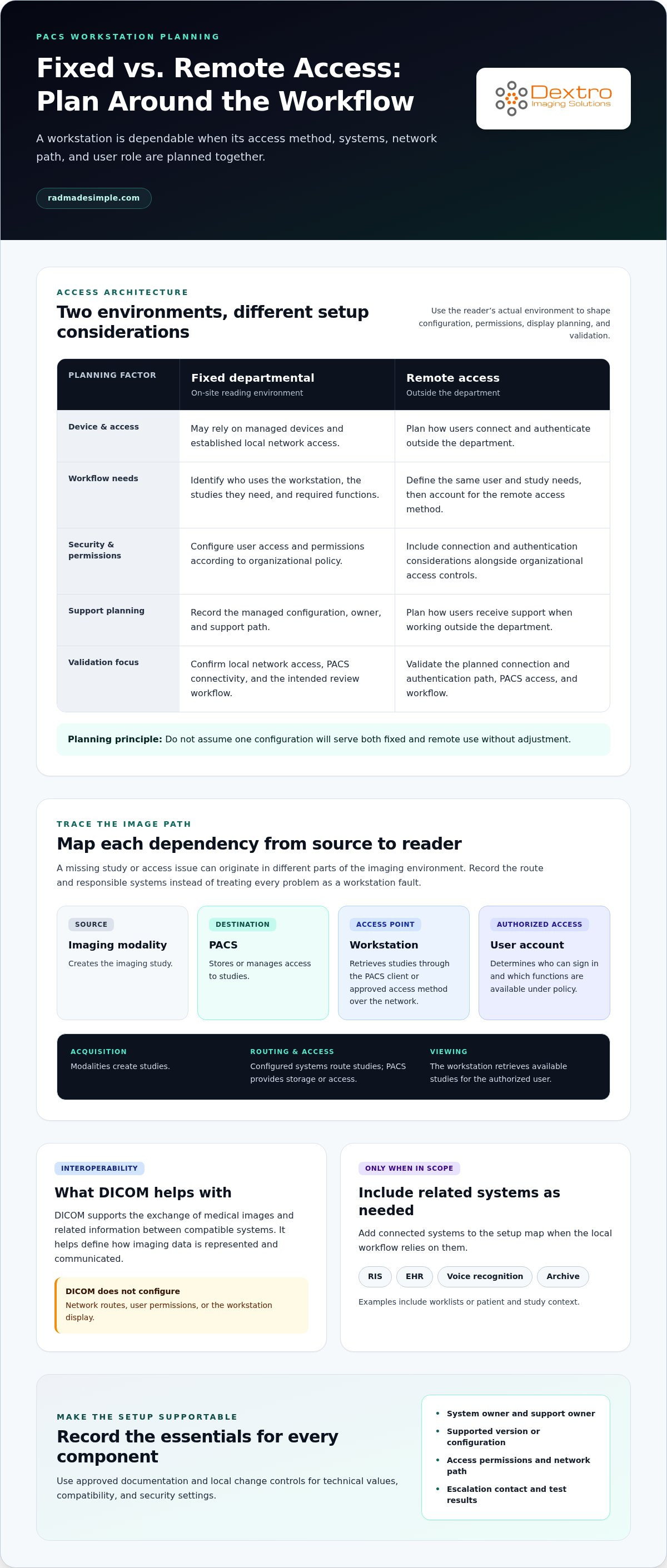
Map the full route a study takes to reach the reader. Imaging sources, such as modalities, send studies into the organization’s imaging environment. PACS stores or manages access to those studies, and the workstation’s configured client or access method retrieves them over the network. The user account determines who can sign in and which functions are available under organizational policy.
DICOM, the Digital Imaging and Communications in Medicine standard, supports the exchange of medical images and related information between compatible systems. It helps define how imaging data is represented and communicated, but it does not configure network routes, user permissions, or the workstation display. Include a Radiology Information System (RIS) or Electronic Health Record (EHR) connection in the setup map only when the local workflow relies on it, such as for worklists or patient and study context.
For a practical dependency check, record the imaging source, PACS destination, workstation access method, network path, and authorized user role. This makes it easier to locate a breakdown instead of treating every image-access problem as a workstation fault.
Define the use case before configuring equipment
Start with the reader’s environment. A fixed departmental workstation may rely on managed devices and established local network access. Remote access adds considerations such as how users connect, authenticate, and receive support outside the department. Do not assume that one configuration will serve both use cases without adjustment.
Record who will use the workstation, which types of studies they need to access, and which workflow functions they require. For example, a user may need to retrieve prior studies, compare images, or access a worklist through an integrated system. These tasks inform software access, permissions, display planning, and validation criteria.
Use the radiology reading workstation guide to consider how performance and compliance needs relate to reading workflows. With the use case defined, the team can plan the PACS workstation setup around actual access and review requirements instead of selecting equipment in isolation.
PACS Workstation Setup: Map the Hardware, Software, and Network
Once the workflow is clear, inventory every component it depends on. A reliable PACS workstation setup requires compatible hardware and software, a suitable display, and approved network and identity controls. Record the organization’s supported configurations rather than assuming similar-looking workstations have the same requirements.
Keep image acquisition and routing distinct from image viewing. Modalities create imaging studies, while configured systems route them to the appropriate destination. The workstation then accesses available studies through the PACS client or approved access method. This separation helps teams identify whether a delay or missing study stems from acquisition, routing, PACS access, or the endpoint. The Radiology Workflow Optimization guide also explores how PACS integration fits within the broader imaging process.
Coordinate workstation and diagnostic display requirements
Inventory the workstation model, operating environment, PACS client, display, and required peripherals. Match the display configuration to the clinical task and local policies, using organization-approved requirements rather than assuming a particular resolution or monitor count. Record display connections and configuration details so support teams can troubleshoot consistently. Standardized medical monitor reference documentation provides further context for diagnostic display planning.
Confirm PACS, DICOM, and network dependencies
Record PACS endpoint information, required ports, routing details, and identity controls in the deployment documentation. Check DICOM communication paths through the organization’s approved testing process, and associate results with the relevant systems and responsible teams. Document only integrations in scope, such as RIS, EHR, voice recognition, or archive connections, and describe their role in the workflow.
Use a component checklist to make ownership and support paths visible. For each item, note its system owner, supported version or configuration, access permissions, and escalation contact. Technical values such as endpoints, ports, compatibility, and security settings vary by organization; validate them against approved documentation and local change controls.
- Workstation: model, operating environment, assigned user or role, and support owner.
- Display: intended clinical task, approved configuration, connection, and responsible team.
- PACS and DICOM: access method, endpoint details, communication path, and testing process.
- Network and identity: required routes and ports, authentication controls, and permissions.
- Related systems: in-scope RIS, EHR, voice-recognition, or archive links, plus owners and escalation paths.
This inventory gives IT, imaging informatics, and clinical stakeholders a shared reference for changes and troubleshooting. Organizations coordinating display, workstation, and PACS decisions can also explore Dextro Imaging Solutions' diagnostic monitors, workstations, and PACS software when planning a supportable configuration.
Choose a PACS Workstation Architecture That Fits the Workflow
Architecture determines where PACS access is managed and what the workstation depends on. A locally installed client runs on the endpoint, so teams plan software deployment, updates, and support across devices. Centrally managed access places more control in shared infrastructure, while endpoints connect through an approved access method. Neither model suits every department. The PACS workstation setup should reflect how users work, which systems they need, and how IT manages change.
Compare access models and locations
Assess fixed departmental use separately from remote access. Fixed workstations typically operate within a defined location and support model. Remote workflows add connectivity and identity considerations and must follow organizational security policies. A traveling radiologist workstation setup guide can help frame the distinct needs of mobile workflows.
| Operational factor | Locally installed client | Centrally managed access |
|---|---|---|
| Software management | Plan deployment, updates, and configuration across endpoints. | Coordinate changes through the central environment and its access method. |
| Connectivity | Confirm the endpoint can reach required PACS services from its location. | Confirm the user’s connection to the managed access environment and PACS. |
| Support | Endpoint troubleshooting may involve both workstation and application owners. | Support may involve central access, network, and PACS owners. |
| Security planning | Apply organizational controls to the endpoint, account, and data access. | Apply approved controls across central access and the connecting endpoint. |
Use the table to identify dependencies, not to assume one architecture will perform better. Document who owns each component and how users should report access problems.
Plan for one system or several
A single PACS workflow may serve a department’s routine image access. Other organizations need users to reach multiple archives or imaging systems, such as after departmental consolidation or across distinct clinical environments. In those cases, evaluate how users find the correct study, how access is assigned, and whether navigation remains clear across systems. Consistent workflows can reduce avoidable confusion, while permissions should reflect each user’s role and approved access.
Dextro offers PACS Harmony and aycan PACS as part of its imaging technology portfolio. Base product selection and integration planning on the organization’s requirements and validated compatibility, not assumptions about features.
Stage changes to protect current work
Architecture changes do not require switching every user at once. Pilot the planned configuration with a representative group and test routine tasks, including sign-in, study retrieval, and relevant workflow connections. Schedule changes through local change controls, communicate what will change, and define who can approve the next stage.
Before rollout, document rollback steps, decision owners, and the conditions that would trigger a pause. If testing exposes an access or integration issue, teams can return to the prior approved configuration while resolving it. This staged approach makes change manageable without treating the existing workflow as disposable.
Configure and Validate a PACS Workstation in Five Steps
A controlled rollout turns a workstation configuration into a supportable clinical endpoint. Authorized IT staff should follow vendor documentation and local change controls, involving relevant imaging and security owners where needed. Keep the sequence visible: assess, configure, connect, test, and document. Assign an owner to each step and record its outcome before releasing the workstation for use.
- Assess the environment. Confirm the intended workflow, workstation identifiers, display, operating environment, PACS access method, and required integrations. Record responsible system owners, supported software versions, network dependencies, and user roles. This baseline helps distinguish a new configuration issue from an existing system condition.
- Configure the endpoint. Install and set up software according to approved vendor documentation. Apply organization-approved identity, permission, endpoint, and security controls. Assign access by user role, and avoid shared credentials where individual accounts are required by local policy. Store configuration records where the responsible support team can access them.
- Connect required systems. Configure approved network routes and PACS access details through the organization’s change process. Include only integrations used in the workflow, such as a worklist, archive, or voice-recognition system. If a connection fails, record the time, affected component, and error information so the appropriate owner can investigate.
- Test the end-to-end workflow. Use approved procedures and representative imaging data with responsible users. Confirm that an authorized user can sign in, search for an expected study, retrieve it, and view it as intended on the configured display. Test relevant workflow handoffs, such as opening a worklist or accessing a connected system, when those functions are in scope. Verify both successful access and expected restrictions for the tested role.
- Document and release. Record test results, exceptions, owners, resolution steps, and follow-up work. Release the workstation only through the organization’s approval process. Keep a rollback plan available so the team can restore the prior approved state if a change causes an unresolved issue.
Use a clear acceptance checklist
Quotable acceptance checklist: “A PACS workstation is ready for release when authorized users can sign in, retrieve and view expected studies, complete required workflow handoffs, and access only the functions permitted by their role.”
Use this checklist to guide sign-off, not replace local requirements. Security, privacy, and compliance checks are organization-specific and should be validated by the responsible teams for the applicable environment. Record who approved each check and where supporting evidence is stored. If a test fails, document the issue, assign an owner, and retest the affected workflow after resolution.
Coordinating hardware, PACS software, and integration support can make deployment easier to manage. Explore Dextro’s workstation and PACS integration support when planning a coordinated configuration.
Simplify PACS Workstation Setup with Dextro Imaging Solutions
A coordinated deployment brings the workstation, diagnostic display, PACS software, and access workflow into one practical plan. Dextro Imaging Solutions offers imaging hardware and PACS software, along with installation, maintenance, and software integration support to help organizations coordinate deployment. Plan the configuration around the facility’s actual workflow rather than treating each component as a separate decision.
Coordinate hardware and PACS software around real workflows
Use the requirements gathered during planning to guide decisions about workstation configuration, display needs, user access, and software. A department with fixed reading locations may have different operational needs from one supporting remote access. Define the integration scope around the facility’s imaging environment, including the systems users rely on and the workflow handoffs they need to complete.
Dextro Reading Stations and Jusha Diagnostic Monitors are hardware offerings. PACS Harmony and aycan PACS are PACS software offerings. Their place in a deployment depends on the organization’s requirements and validated compatibility. Define intended use, interfaces, access roles, and acceptance criteria before finalizing the PACS workstation setup. This gives technical and clinical stakeholders a shared basis for configuration and testing.
Equipment planning also includes local policies and applicable compliance considerations. Use the radiology equipment compliance checklist to support a structured review of requirements for the environment. The responsible teams should determine which checks apply and document their decisions.
Plan a supported deployment and next steps
For a productive planning discussion, bring together the details that shape the project: operating environment, workstation and display requirements, user roles, PACS access model, in-scope integrations, and validation criteria. Include system owners and support contacts so responsibilities are clear during deployment and after handover. This preparation keeps discussion focused on practical dependencies, workflow fit, and how the configuration will be tested.
Dextro’s installation, maintenance, and software integration support can help coordinate deployment around those requirements. A clear scope gives the team a foundation for planning configuration, integration work, and ongoing support without assuming every facility needs the same design. Record decisions and outstanding items so they remain visible through implementation.
Ready to align workstation, display, and PACS planning with your imaging workflow? Discuss a PACS workstation setup with Dextro and outline the environment, systems, and validation goals your team needs to address.
Make Your Next PACS Upgrade Easier to Support
A workstation plan should remain useful beyond its initial rollout. As clinical workflows, system connections, and user needs change, clear ownership and current configuration records help teams assess the impact before making adjustments. Build a regular review into your IT process so changes can be evaluated against the original workflow and validation criteria.
For your next planning step, gather the requirements that matter most to your organization: intended users, access model, imaging environment, and the challenges your team wants to resolve. Dextro Imaging Solutions can connect workstation and PACS planning with installation, maintenance, and software integration support tailored to the project’s needs.
A well-planned PACS workstation setup gives radiology IT teams a stronger foundation for reliable access and supportable change. Discuss your PACS workstation setup with Dextro to plan a configuration around your workflow.
Frequently Asked Questions
What is a PACS workstation?
A PACS workstation is the user-facing endpoint for opening and working with medical images through an organization’s imaging systems. It may include the computer, display, PACS access software, and approved peripherals needed for a specific role. Unlike an archive or routing service, the workstation supports a person’s interaction with available studies. Its intended function might be image review, administrative access, or another defined task, so configure it to match the user’s responsibilities.
Can I use a regular computer as a PACS workstation?
Possibly, if the computer meets the needs of its intended PACS task and the organization approves the full configuration. Before repurposing an office PC, compare its operating environment and supported software with vendor documentation, then assess device management, security controls, and display suitability. Administrative image access and diagnostic review can have different requirements. Have IT and clinical stakeholders document the intended use and validate the endpoint for that role.
Does a PACS workstation need a DICOM connection?
Not always as a direct connection. DICOM commonly supports communication between imaging sources and PACS, while a workstation may retrieve studies through PACS client software or another configured access layer. For example, a modality may send a study to PACS without communicating directly with the reader’s computer. Map the actual pathway in your environment, then check that each required system can exchange the expected information using approved procedures.
How much internet bandwidth does a PACS workstation need?
There is no single bandwidth figure that applies to every workstation. A local endpoint accessing systems on an internal network has different dependencies from a remote user retrieving studies over an external connection. Study size, concurrent activity, and other network demands can affect the experience. Ask IT to assess the route used for image access, review system guidance, and observe representative workflow conditions before deciding whether available connectivity meets the use case.
Can a PACS workstation be accessed remotely?
Yes, remote access can support distributed imaging workflows when the organization’s PACS environment and policies allow it. The access path should account for the user’s identity, managed endpoint, network protections, and the systems they are authorized to use. Test from the intended remote environment, since a successful connection inside the facility does not establish that remote access works as planned. Define who supports access issues and how users report them.
How do you test a new PACS workstation before clinical use?
Use a documented acceptance process and require sign-off from the responsible IT and clinical stakeholders. Alongside routine access checks, confirm that a user with a different role cannot access functions outside their permissions. Record the tested configuration, evidence, exceptions, and the person responsible for resolving each issue. Keep release approval separate from technical installation so the workstation is not treated as ready until the organization’s review and change-control steps are complete.


